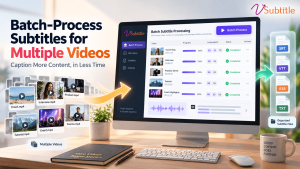
Captioning one video is easy. Captioning fifty is a project. Whether you are sitting on a back catalogue of YouTube uploads, a library of training modules, or a backlog of webinars and interviews, the real challenge is not generating subtitles for a single file. It is doing it consistently, quickly and without losing track of what has been finished.
This guide shows you how to batch process subtitles for multiple videos with a workflow that scales. We will cover how to plan a batch, set consistent standards, organise files, review efficiently as a team, and publish at volume, using vSubtitle as the example platform throughout.
Key Takeaways
- Batch success is mostly preparation. Inventory your videos, define one subtitle style, agree on file names and list your target languages before you upload anything.
- Use the same settings for every video in a batch. Consistent language, style and export format make review and publishing far faster.
- AI does the heavy lifting; humans do the quality control. Generate drafts in bulk, then review names, numbers and terminology with a shared glossary.
- vSubtitle supports a repeatable workflow. It offers up to 97.8% accuracy, 100+ languages, a customizable editor, team collaboration, and SRT, VTT and JSON exports, with the first 30 minutes free for new users at the time of writing.
- Plan costs by minutes. Because vSubtitle bills by output minutes, you can estimate a batch by adding up video lengths and languages.
- Check quality by sampling. Fully review high-priority videos and spot-check the rest, then fix recurring errors across the whole set.
Why Batch Processing Matters
Teams usually start thinking about batch subtitling when the one-by-one approach stops working. Common triggers include:
- A growing back catalogue. Older videos have no captions, and new ones keep arriving every week.
- Accessibility requirements. Organisations need to caption entire libraries, not just new releases. Our post on closed captions as a legal requirement for online courses explains why this matters in education.
- Global expansion. Every video suddenly needs subtitles in three, five or ten languages.
- Limited team time. Editors and marketers cannot spend hours on repetitive steps for every file.
A good batch workflow turns that mountain of work into a predictable routine: the same steps, in the same order, for every video.
Three Ways to Subtitle Multiple Videos
| Approach | How it works | Trade-offs |
|---|---|---|
| Manual, one at a time | A person transcribes, times and exports each video separately. | Very high quality control, but extremely slow and expensive at volume. |
| AI platform with a repeatable workflow | You upload videos, generate subtitles with shared settings, review in an editor and export files. | Fast, consistent and affordable. Needs a short human review step. |
| Custom scripts or integrations | Developers connect speech recognition tools to your own systems. | Flexible for large engineering teams, but requires setup and ongoing maintenance. |
For most marketing, training and creator teams, the middle option hits the sweet spot. If you want to see how AI compares with human work before choosing, read our guide to AI vs human captioning.
Step 1: Plan Your Batch Before You Upload
Ten minutes of planning saves hours of rework. Before you upload the first file, decide the following.
- Inventory your videos. List every video with its title, length, spoken language and priority. A simple spreadsheet works well.
- Group by similarity. Videos with the same language, speaker or topic can share a glossary and review process. Group them together.
- Choose your target languages. Decide which videos need translation and into which languages. Start with your most-watched content.
- Define a style guide. Agree on font, size, position, maximum lines, how to label speakers and how to handle numbers and sound descriptions.
- Pick the output format. SRT works almost everywhere. Choose VTT or JSON only if your platform or workflow requires them. Our SRT vs VTT vs ASS format guide can help you decide.
- Set a naming convention. Decide how files will be named before you have fifty of them, using the pattern in the table below.
A simple naming and folder structure
| Item | Recommended pattern | Example |
|---|---|---|
| Source video | project_videotitle_v1.mp4 | onboarding_welcome_v1.mp4 |
| Subtitle file | videotitle_languagecode.srt | onboarding_welcome_en.srt |
| Translated files | videotitle_languagecode.srt | onboarding_welcome_es.srt |
| Folder | Project / Language / Status | Onboarding / EN / Approved |
| Glossary | project_glossary.xlsx | onboarding_glossary.xlsx |
Step 2: Build a Shared Glossary
The single most useful tool in a batch workflow is a glossary. Write down every brand name, product name, person’s name, acronym and technical term that appears across your videos, with the correct spelling. When the AI misspells one of them in one video, there is a good chance it will do so in many. A glossary lets reviewers fix those errors quickly and consistently, and it gets more valuable with every batch.
Why vSubtitle Works Well for Batch Subtitling
vSubtitle is designed for creators and teams who subtitle video regularly. Here is how its features map onto a batch workflow.
- High accuracy. vSubtitle reports up to 97.8% accuracy, so every draft in your batch starts from a strong base. Results depend on audio quality, so run a few representative videos first.
- Fast processing in the cloud. The platform processes hours of footage in minutes and reports about three times faster processing than traditional methods, so you can keep working while videos are being processed.
- 100+ languages. Generate subtitles in the original language and translate into others without switching tools.
- A customizable editor. Correct text, timing and styling in one place, so fixes stay quick even when you have many files to check.
- Team collaboration. Review workflows and real-time collaborative editing let several people work through a batch at once, for example one reviewer per language.
- Consistent exports. Download SRT, VTT or JSON, or embed captions directly into videos, using the same format choice across the batch.
- Predictable billing. Billing is based on output minutes, and re-downloading a set you have already generated does not use extra minutes. New users can currently start with their first 30 minutes free, which is a practical way to test your workflow on a small sample.
You can get started with the auto subtitle generator or the auto caption generator. For videos you plan to publish on YouTube, the YouTube video caption generator is a convenient starting point.
A note on multi-file uploads: before planning a very large batch, check the vSubtitle upload page for the current options on uploading several files at once. If you process files one after another, the cloud-based processing means you can queue videos and carry on with review while others finish.
Step 3: Run a Pilot With Two or Three Videos
Never start with the whole library. Pick two or three videos that represent the range in your batch, for instance one with clean studio audio, one with a guest or accent, and one with technical vocabulary. Run them through the full workflow, including review and publishing. This pilot shows you how much editing time to expect, which terms to add to your glossary and whether your style settings look right on screen. Adjust, then scale up.
Step 4: Process the Batch With Consistent Settings
- Create your account at register.vsubtitle.com and use the free minutes available to new users for your pilot.
- Upload the videos in your first group, keeping files in the order of your inventory sheet.
- Apply the same language and style settings to every video in that group. Consistency here is what makes review and publishing fast later.
- Add translation languages at the same time if the group needs them, so each video is handled once rather than revisited.
- Let processing run in the cloud. Use the waiting time to prepare descriptions, thumbnails or upload slots.
- Track status as you go. Update your inventory sheet with columns such as Generated, In review, Approved and Published.
Step 5: Review Efficiently as a Team
Reviewing every word of every video does not scale, so use a tiered approach.
| Video tier | Examples | Review level |
|---|---|---|
| Tier 1: High stakes | Flagship courses, compliance training, customer-facing campaigns, legal or medical content | Full review of every subtitle, plus a native-speaker check for translations |
| Tier 2: Standard | Product demos, webinars, internal training | Review names, numbers, terms and opening and closing minutes |
| Tier 3: Low risk | Archive content, informal clips | Spot-check a few minutes and fix glossary terms |
Divide the work sensibly. Assign reviewers by language or topic, use the glossary as the single source of truth, and have one person approve each video. Because vSubtitle supports review workflows and real-time collaborative editing, several reviewers can work through a batch at the same time without passing files around. For high-risk material, our article on AI subtitling for legal depositions and our post on medical educators and complex terminology show where extra human checks are most valuable.
Fix errors once, then look for patterns
When the same mistake appears in several videos, such as a product name or a speaker’s surname, note it in the glossary and check the other videos in the batch for the same error. This pattern-based approach is much faster than reading everything from scratch.
Step 6: Export and Organise Your Subtitle Files
Download your finished files in the same format for the whole batch, and name them using the convention you set in Step 1. Store each language in its own folder and keep an approved version separate from drafts. If you are creating files for the first time, our guide on how to create an SRT file automatically covers the format in detail.
Step 7: Publish at Scale
Publishing is where batches often slow down, so treat it as its own step.
- Match files to videos with your inventory sheet, so each subtitle file is attached to the right video and language track.
- Upload in the same order every time, for example original language first, then translations.
- Spot-check after publishing. Play a few videos with sound off to confirm the subtitles appear and are in sync.
- Update the status sheet so you always know what is live.
For YouTube channels, our guide for YouTube creators explains how to add subtitle tracks, and for course libraries, see subtitles for online courses.
Estimating Time and Cost for a Batch
Because billing is based on output minutes, estimating a batch is a simple calculation: add up the total running time of every video, then multiply by the number of languages you plan to generate. For example, 50 videos averaging 8 minutes each come to 400 minutes per language, and generating subtitles in three languages means 1,200 output minutes in total. Keep a small buffer for videos you may need to regenerate after edits.
Time works the same way. Your biggest time cost is review, not generation, which is why the tiered review approach above matters. Choose a monthly or annual plan based on how steady your volume is. For comparison with other tools, see our roundup of the top 10 AI captioning tools.
Batching Across Multiple Languages
Multilingual batches deserve special care. Generate and approve the original-language subtitles first, because any error there will be carried into every translation. Then generate translations, and have a native speaker review those in Tier 1 and Tier 2 videos. Keep one glossary per language so brand terms stay consistent. To see why this effort pays off, read how multilingual captions can double YouTube watch time, and explore our AI video translator page.
Who Benefits Most From Batch Subtitling?
- Online course creators and universities: hundreds of lecture videos need consistent captions. See subtitles for online courses.
- Corporate learning and HR teams: onboarding and compliance libraries need to be accessible to every employee. Read about subtitles for corporate training videos.
- YouTube channels with a back catalogue: older videos can be captioned and translated to reach new viewers.
- Marketing and brand teams: campaign videos, testimonials and product demos can be subtitled together for every market.
- Webinar and event teams: recorded sessions can be turned around quickly. See our guide to adding subtitles to Zoom and Teams recordings.
Accessibility sits underneath all of these. Our ultimate guide to video accessibility explains why a complete, consistent library matters.
Common Batch Subtitling Mistakes to Avoid
- Starting without a pilot. Problems found on video 40 are much more expensive than problems found on video 2.
- Mixing settings across videos. Different styles and formats make review and publishing messy.
- Skipping the glossary. The same name gets fixed again and again.
- Captioning before edits are final. If a video is trimmed afterward, the timing breaks and the work is repeated.
- Treating all videos equally. Spending the same review time on an archive clip and a flagship course wastes effort.
- Losing track of status. Without a simple tracking sheet, finished and unfinished videos get mixed up.
Final Thoughts
Learning how to batch process subtitles for multiple videos is mostly about building a routine you can trust: plan the batch, standardise your settings, generate in bulk, review in tiers, and publish with a checklist. With that routine in place, captioning a whole library stops being a daunting project and becomes a manageable, repeatable task.
With high accuracy, fast cloud processing, 100+ languages, collaborative editing and flexible exports, vSubtitle gives teams the tools to run that routine without friction. Create a free account, run a pilot on two or three videos using the free minutes available to new users, and see how quickly your batch comes together.
Frequently Asked Questions (FAQs)
How do I batch process subtitles for multiple videos?
Plan your batch first by listing videos, languages, style and file names. Then process videos with the same settings in a tool like vSubtitle, review them using a shared glossary, export every file in one format, and publish with a tracking sheet. Run a small pilot before the full batch.
Can I generate subtitles for many videos at once?
AI subtitle platforms process videos in the cloud, so you can have several in progress while you review others. For vSubtitle, check the upload page for the current options on uploading multiple files at once before planning a very large batch.
How do I keep subtitles consistent across a whole video library?
Use one style guide, one set of caption settings and one shared glossary of names and terms for the entire batch. Assign a single approver per video and apply the same naming convention to every file.
How much does it cost to subtitle a large batch of videos?
With minute-based billing, add up the total running time of your videos and multiply by the number of languages. vSubtitle bills by output minutes, and new users can currently start with their first 30 minutes free to test the workflow.
Do I need to review every subtitle in a large batch?
Not always. Fully review high-stakes videos, such as compliance training or flagship courses, and spot-check lower-risk content. Fix recurring errors using your glossary and check other videos for the same mistakes.
Can I batch translate subtitles into multiple languages?
Yes. vSubtitle supports more than 100 languages, so you can add several target languages to each video. Approve the original-language subtitles first, then have a native speaker review important translations.
What file format is best for batch subtitle exports?
SRT is the safest default because it works on most platforms. Use VTT or JSON only when your player or workflow needs them, and keep the same format across the whole batch for simple publishing.
Relevant Articles
Keep exploring with these related guides from the vSubtitle blog:
- How to Create an SRT File Automatically – A step-by-step guide to generating SRT files.
- Closed Captions: A Legal Requirement for Online Courses – Why course libraries need full caption coverage.
- Best AI Subtitle Generator for YouTube Creators – What to look for when subtitling a YouTube channel.
- Multilingual Captions Can Double YouTube Watch Time – The case for translating your subtitles.
- SRT vs VTT vs ASS: Subtitle Format Guide – Choose the right export format for your batch.
- AI Subtitling for Beginners – How AI subtitling works, explained simply.
- Top 10 AI Captioning Tools Guide 2026 – A shortlist of tools worth comparing.