How to Create an SRT File Automatically (Step-by-Step)
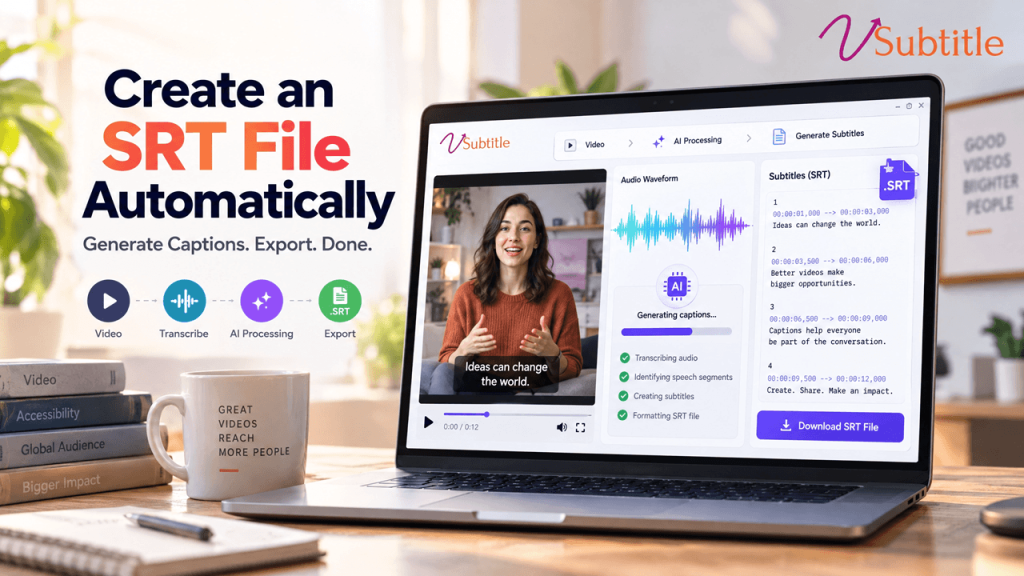
If you have ever tried to add subtitles to a video, you have probably run into the SRT file. It is the plain-text subtitle format that almost every video platform, player and editing tool understands. The catch is that building one by hand means typing every line and writing every timestamp yourself, which can take hours for even a short video. The good news is that you do not have to. In this guide you will learn how to create an SRT file automatically from any video, step by step. We will explain what an SRT file contains, show you a quick workflow using vSubtitle, cover how to review and fix the result, and share tips for avoiding the most common SRT problems. Key Takeaways What Is an SRT File? SRT stands for SubRip Subtitle. It is one of the oldest and most widely supported subtitle formats, which is exactly why it is the first choice for most creators and teams. An SRT file is plain text, so you can open it in any text editor, and nearly every major video platform and player accepts it. Each subtitle in the file is a block with four parts: a sequence number, a timecode line showing when the text appears and disappears, one or two lines of subtitle text, and a blank line before the next block. Here is a simple example: 1 00:00:01,000 –> 00:00:03,500 Welcome back to the channel. 2 00:00:03,800 –> 00:00:07,200 Today we are making subtitles in just a few minutes. Notice the timecode format: hours, minutes, seconds, then milliseconds after a comma. That small detail causes many SRT errors when files are written by hand, and it is one more reason to let software generate the file for you. For a deeper comparison with other formats, read our SRT vs VTT vs ASS format guide. Why Create an SRT File Automatically? You can write an SRT file manually in a text editor, but the effort adds up quickly. Here is why automatic generation is the better choice for almost everyone. If you are new to the technology, our beginner guide to AI subtitling explains what happens behind the scenes. Why Use vSubtitle to Generate Your SRT File vSubtitle is an AI subtitling and captioning platform built to take you from a raw video to a finished subtitle file with as little friction as possible. Here is what it offers for SRT creation. You can start right away with the auto subtitle generator, the auto caption generator, or the YouTube video caption generator if your goal is to publish on YouTube. How to Create an SRT File Automatically: Step-by-Step Follow these steps to turn any video into a ready-to-use SRT file. Step 1: Get your video ready Finish editing before you generate subtitles. If you trim or rearrange the video afterward, the timestamps will no longer match and you will need to regenerate or shift the file. Use the best-quality audio you have, because clear sound is the biggest factor in transcription accuracy. Step 2: Upload your video to vSubtitle Create a free account at register.vsubtitle.com and drag your video into the uploader. New users can start with free minutes, so you can test the whole process on a real video before paying anything. Step 3: Choose your language and settings Select the language spoken in the video. If you want extra languages, add them now so everything is generated together. Pick your caption style and choose SRT as the output format you plan to download. Step 4: Generate the subtitles Start the process. The AI transcribes the speech, splits it into subtitle blocks and attaches timecodes. Processing runs in the cloud, so you can work on something else, such as your video title and description, while you wait. Step 5: Review and edit Open the editor and play the video with the subtitles on. You are checking for a few specific things: You do not need to re-read every word. Watch the video once, fix what stands out, and give extra attention to the opening and closing lines. Step 6: Download your SRT file Choose SRT as the format and download the file. If you generated several languages, download one file for each. Name them clearly, for example my-video-en.srt and my-video-es.srt, so they are easy to match up later. Step 7: Upload the SRT file where you need it Attach the file to your video wherever it will be published. The sections below explain the most common destinations. Where Can You Use an SRT File? If your platform does not support separate subtitle files, you can embed the captions into the video itself so they are always visible. That is often the best choice for short social clips. SRT vs VTT: Which One Should You Download? SRT is the safest default, because it is accepted almost everywhere. VTT (WebVTT) is closely related and is commonly used by web video players, and it supports extra styling and positioning options. If a platform asks for VTT, you can export that format from vSubtitle instead. When you are unsure, download both and keep them in the same folder. Our SRT vs VTT vs ASS format guide covers when each one makes sense. Tips for a Clean, Professional SRT File Common SRT Problems and How to Fix Them Problem Likely cause Fix Subtitles do not appear Wrong file type, wrong language track or a timecode format error Confirm the extension is .srt, attach it to the right language, and regenerate the file instead of editing timecodes by hand. Strange symbols instead of text File saved with the wrong text encoding Save and use the file in UTF-8, especially for non-Latin languages such as Hindi, Arabic or Chinese. Subtitles drift out of sync The video was edited or re-exported after subtitling Regenerate the SRT from the final video, or shift timing in the editor. Subtitles flash by too fast Lines are too long for the time on screen Shorten the text