If you have ever tried to add subtitles to a video, you have probably run into the SRT file. It is the plain-text subtitle format that almost every video platform, player and editing tool understands. The catch is that building one by hand means typing every line and writing every timestamp yourself, which can take hours for even a short video.
The good news is that you do not have to. In this guide you will learn how to create an SRT file automatically from any video, step by step. We will explain what an SRT file contains, show you a quick workflow using vSubtitle, cover how to review and fix the result, and share tips for avoiding the most common SRT problems.
Key Takeaways
- An SRT file is a simple text file that holds numbered subtitle blocks, each with a start and end time and the text to display.
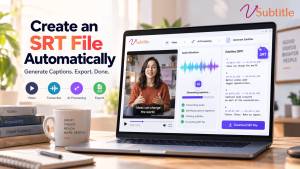
- You can generate one automatically. Upload your video to an AI subtitle generator, and it transcribes the speech, times every line and gives you a ready-to-download SRT file.
- The workflow takes five steps: upload, choose language and settings, generate, review and edit, then download the SRT file.
- vSubtitle makes it easy. It offers up to 97.8% accuracy, 100+ languages, a customizable editor, and SRT, VTT and JSON exports, with the first 30 minutes free for new users at the time of writing.
- Always review before publishing. Check names, numbers and timing so your subtitles look professional.
- Most issues are easy to avoid. Use the correct timecode format, UTF-8 encoding, short lines and one SRT file per language.
What Is an SRT File?
SRT stands for SubRip Subtitle. It is one of the oldest and most widely supported subtitle formats, which is exactly why it is the first choice for most creators and teams. An SRT file is plain text, so you can open it in any text editor, and nearly every major video platform and player accepts it.
Each subtitle in the file is a block with four parts: a sequence number, a timecode line showing when the text appears and disappears, one or two lines of subtitle text, and a blank line before the next block. Here is a simple example:
1
00:00:01,000 –> 00:00:03,500
Welcome back to the channel.
2
00:00:03,800 –> 00:00:07,200
Today we are making subtitles
in just a few minutes.
Notice the timecode format: hours, minutes, seconds, then milliseconds after a comma. That small detail causes many SRT errors when files are written by hand, and it is one more reason to let software generate the file for you. For a deeper comparison with other formats, read our SRT vs VTT vs ASS format guide.
Why Create an SRT File Automatically?
You can write an SRT file manually in a text editor, but the effort adds up quickly. Here is why automatic generation is the better choice for almost everyone.
- It saves hours. Manual subtitling can take several hours for each hour of video. An AI tool produces a full draft in minutes.
- Timing is handled for you. The software aligns each line to the audio, so you avoid typing millisecond timecodes.
- The format is always valid. Automatic generation avoids typos in numbering, arrows and timestamps that can cause a player to reject your file.
- You can scale. Whether you publish one video a month or ten a week, the process stays the same.
- Translation is built in. Generate SRT files in multiple languages without redoing the work. See our AI video translator page for translation workflows.
If you are new to the technology, our beginner guide to AI subtitling explains what happens behind the scenes.
Why Use vSubtitle to Generate Your SRT File
vSubtitle is an AI subtitling and captioning platform built to take you from a raw video to a finished subtitle file with as little friction as possible. Here is what it offers for SRT creation.
- High accuracy. vSubtitle reports up to 97.8% accuracy using neural models that understand context, so your first draft needs less cleanup. Results depend on audio quality, so test it on your own footage.
- Fast processing. The platform processes hours of footage in minutes and reports about three times faster processing than traditional methods.
- An editor for quick fixes. Correct text, adjust timing and refine styling before you download, with the video playing next to the subtitles.
- 100+ languages. Generate an SRT file in the language of your video, and translate it into others in the same workflow.
- More than SRT. Export VTT or JSON when your platform or workflow needs them, or embed captions directly into your video.
- Collaboration. Review workflows and real-time collaborative editing let teammates fix and approve subtitles together.
- Simple pricing. Billing is based on output minutes, and re-downloading a set you have already generated does not use extra minutes. New users can currently start with their first 30 minutes free.
You can start right away with the auto subtitle generator, the auto caption generator, or the YouTube video caption generator if your goal is to publish on YouTube.
How to Create an SRT File Automatically: Step-by-Step
Follow these steps to turn any video into a ready-to-use SRT file.
Step 1: Get your video ready
Finish editing before you generate subtitles. If you trim or rearrange the video afterward, the timestamps will no longer match and you will need to regenerate or shift the file. Use the best-quality audio you have, because clear sound is the biggest factor in transcription accuracy.
Step 2: Upload your video to vSubtitle
Create a free account at register.vsubtitle.com and drag your video into the uploader. New users can start with free minutes, so you can test the whole process on a real video before paying anything.
Step 3: Choose your language and settings
Select the language spoken in the video. If you want extra languages, add them now so everything is generated together. Pick your caption style and choose SRT as the output format you plan to download.
Step 4: Generate the subtitles
Start the process. The AI transcribes the speech, splits it into subtitle blocks and attaches timecodes. Processing runs in the cloud, so you can work on something else, such as your video title and description, while you wait.
Step 5: Review and edit
Open the editor and play the video with the subtitles on. You are checking for a few specific things:
- Names, brands and technical terms that the AI may have misheard.
- Numbers, dates and prices, which are easy to get wrong.
- Line breaks and length, so each subtitle is easy to read at a glance.
- Timing, especially around fast speech, pauses and scene changes.
You do not need to re-read every word. Watch the video once, fix what stands out, and give extra attention to the opening and closing lines.
Step 6: Download your SRT file
Choose SRT as the format and download the file. If you generated several languages, download one file for each. Name them clearly, for example my-video-en.srt and my-video-es.srt, so they are easy to match up later.
Step 7: Upload the SRT file where you need it
Attach the file to your video wherever it will be published. The sections below explain the most common destinations.
Where Can You Use an SRT File?
- YouTube: open your video in YouTube Studio, go to Subtitles, add a language and upload the file with timing. Our guide to the best AI subtitle generator for YouTube creators goes deeper, and our comparison of AI subtitles vs YouTube auto captions explains why uploading your own file often gives cleaner results.
- Social and business platforms: many platforms that host video, such as Facebook, LinkedIn and Vimeo, accept SRT uploads. Check each platform’s help pages for the current process, as menus change often.
- Video players: popular desktop players can load an SRT file alongside a video, which is handy for reviewing content or sharing files internally.
- Video editors: most editing software can import SRT files as a caption track, saving you from retyping text.
- Learning platforms: course platforms commonly accept SRT or VTT for lecture videos. See our guide to subtitles for online courses.
- Meeting and training recordings: attach SRT files to recorded sessions so teams can follow along. Read more about subtitles for corporate training videos and adding subtitles to Zoom and Teams recordings.
If your platform does not support separate subtitle files, you can embed the captions into the video itself so they are always visible. That is often the best choice for short social clips.
SRT vs VTT: Which One Should You Download?
SRT is the safest default, because it is accepted almost everywhere. VTT (WebVTT) is closely related and is commonly used by web video players, and it supports extra styling and positioning options. If a platform asks for VTT, you can export that format from vSubtitle instead. When you are unsure, download both and keep them in the same folder. Our SRT vs VTT vs ASS format guide covers when each one makes sense.
Tips for a Clean, Professional SRT File
- Keep lines short. One or two lines per subtitle, with a comfortable number of characters per line, reads best on mobile screens.
- Give each subtitle enough time on screen. Fast speech can create text that vanishes before viewers can read it, so adjust timing or lightly condense wording where needed.
- Break lines at natural points. Split between phrases, not in the middle of a name or a phrase that belongs together.
- Use consistent style. Decide how you handle numbers, speaker changes and sound descriptions, and apply the same rules throughout.
- Add non-speech cues when they matter. For accessibility, short descriptions such as [applause] or [music] help viewers who cannot hear the audio. Read our ultimate guide to video accessibility for more.
- Test with sound off. Watching the video silently is the fastest way to spot timing and readability issues.
Common SRT Problems and How to Fix Them
| Problem | Likely cause | Fix |
|---|---|---|
| Subtitles do not appear | Wrong file type, wrong language track or a timecode format error | Confirm the extension is .srt, attach it to the right language, and regenerate the file instead of editing timecodes by hand. |
| Strange symbols instead of text | File saved with the wrong text encoding | Save and use the file in UTF-8, especially for non-Latin languages such as Hindi, Arabic or Chinese. |
| Subtitles drift out of sync | The video was edited or re-exported after subtitling | Regenerate the SRT from the final video, or shift timing in the editor. |
| Subtitles flash by too fast | Lines are too long for the time on screen | Shorten the text or extend the display time in the editor. |
| Platform rejects the file | Missing blank lines or broken numbering | Download a freshly generated file instead of editing in a text editor. |
| Names are misspelled | Uncommon names and terms are hard for AI | Correct them in the editor and keep a short glossary for future videos. |
Creating SRT Files in Multiple Languages
One of the biggest advantages of automatic SRT generation is how easily it scales across languages. Create your main SRT file in the spoken language, then generate translated SRT files for each audience you want to reach. Each language gets its own file and is attached to the video as a separate subtitle track, so viewers can pick the one they prefer.
Machine translation gives you a strong and fast foundation, and for customer-facing or brand-critical videos it is worth asking a native speaker to review the result. To learn why translated subtitles matter for reach, read how multilingual captions can double YouTube watch time.
What About Free SRT Generators?
Free tools can be a useful way to experiment, especially for a single short video. Just keep in mind the trade-offs: usage limits, lower accuracy on difficult audio, limited editing and fewer languages. A good approach is to start with free minutes on a full-featured platform so you can judge quality on your own content. For a closer look, see our roundup of the best free subtitle generators and our tutorial on adding subtitles to a video for free.
Final Thoughts
Learning how to create an SRT file automatically turns a slow, error-prone task into a quick routine: upload, generate, review, download and publish. The review step is where a few minutes of attention make the difference between an acceptable subtitle file and a polished one.
With high accuracy, fast processing, 100+ languages and a flexible editor, vSubtitle gives you a reliable way to produce SRT files for any video you publish. Create a free account, upload a video using the free minutes available to new users, and download your first SRT file in minutes.
Frequently Asked Questions (FAQs)
How do I create an SRT file automatically?
Upload your video to an AI subtitle generator such as vSubtitle, select the spoken language, generate the subtitles, review them in the editor, and download the file in SRT format. The whole process takes minutes, plus a short review.
What is an SRT file?
An SRT file is a plain-text subtitle file. It contains numbered blocks, each with a start and end timecode and the subtitle text. It is widely supported by video platforms, players and editing software.
Can I create an SRT file from a video for free?
Yes, many tools offer free trials or limited free usage. vSubtitle currently gives new users their first 30 minutes free, which is enough to test the workflow on a real video. Offers can change, so check the registration page for details.
How do I upload an SRT file to YouTube?
Open your video in YouTube Studio, go to the Subtitles section, add a language, choose to upload a file, select With timing, and pick your SRT file. Save or publish the track when you are done.
What is the difference between SRT and VTT?
Both are text-based subtitle formats. SRT is the simplest and most widely supported, while VTT is common for web players and supports more styling and positioning options. vSubtitle exports both.
Can I create SRT files in other languages?
Yes. vSubtitle supports more than 100 languages, so you can generate an SRT file in the original language and translated SRT files for other audiences. Ask a native speaker to review translations for important content.
Why is my SRT file out of sync?
Sync problems usually happen when the video was edited or re-exported after the subtitles were created. Regenerate the SRT from the final video or adjust the timing in the editor.
Relevant Articles
Keep exploring with these related guides from the vSubtitle blog:
- SRT vs VTT vs ASS: Subtitle Format Guide – Choose the right subtitle file format.
- How to Add Subtitles to a Video for Free – A simple walkthrough for adding subtitles at no cost.
- AI Subtitling for Beginners – How AI subtitling works, explained simply.
- Best Free Subtitle Generator 2026 – Free options and what to expect from them.
- Best AI Subtitle Generator for YouTube Creators – What to look for when subtitling YouTube videos.
- AI Subtitles vs YouTube Auto Captions – Why uploading your own subtitle file can beat auto captions.
- How to Caption Interview Videos Automatically – A step-by-step workflow for interview captions.