
vSubtitle

New Here? Get Your First 10 Minutes FREE - Limited Time Only!

Subtitling Guides

AI Subtitling for Beginners
Subtitling Guides

AI Subtitling for Beginners: Everything You Need to Know Before Starting

You’ve probably noticed that the most-watched videos online almost always have subtitles. Not because the creators are obligated to add them β€” but because captions make content more watchable, more shareable, and more discoverable. If you’ve never added subtitles to a video before, the process can feel intimidating. Do you need special software? Do you have to type every word manually? What even is an SRT file? And what does ‘AI subtitling’ actually mean? This guide answers all of that β€” clearly, simply, and without the jargon. By the time you finish reading, you’ll know exactly what AI subtitling is, why it matters, how it works, and how to add captions to your very first video in minutes β€” for free. πŸ‘‹  No experience needed. This guide is written for complete beginners. If you already know the basics, feel free to skip ahead using the section headings. 1. What Is AI Subtitling? AI subtitling is the process of using artificial intelligence to automatically generate subtitle text from the audio in your video β€” without you having to type a single word. Here’s the simple version of how it works: The whole process β€” for a 10-minute video β€” typically takes 3 to 5 minutes with a good AI tool. Compare that to typing subtitles manually, which would take most people 60 to 90 minutes for the same video. πŸ€–  AI subtitling isn’t magic β€” it’s a very well-trained speech recognition model. Modern AI tools like vSubtitle achieve 95%+ accuracy on clear audio, which means you only need to fix a handful of words, not rewrite everything. 2. Why Should You Add Subtitles to Your Videos? This is the question most beginners ask first β€” and it’s a fair one. Here are the six most compelling reasons: Most Videos Are Watched Without Sound Studies consistently show that 85% or more of social media videos are watched on mute. Whether someone is on a train, in a meeting, or just doesn’t want to disturb those around them β€” if your video doesn’t have captions, your message goes unheard. Literally. Subtitles Make Your Content Accessible Over 430 million people worldwide have hearing loss. Captions make your content accessible to this audience β€” and in many countries, captioning is increasingly a legal requirement for publicly available video content. More Views, More Watch Time Videos with captions consistently outperform those without on every major platform. Viewers stay longer when they can follow along with text, even if they’re watching with sound on. YouTube, in particular, uses watch time as a key ranking signal β€” so more captions can mean more algorithmic reach. Better SEO Search engines can’t watch your videos, but they can read your subtitle files. When you upload an SRT or VTT caption file to YouTube or embed it in a web page, every spoken word becomes indexable text. This means your video can rank for keywords that appear in your speech β€” even if those words never appear in your title or description. Reach Non-Native Speakers English is a second language for billions of people. Captions slow down comprehension difficulty and make your content accessible to viewers who might otherwise skip videos that are too fast or too colloquial to follow by ear alone. Look More Professional Videos with clean, well-timed subtitles simply look more polished. Whether you’re a freelancer delivering work to a client, a creator building an audience, or a teacher producing course material β€” captions signal effort and care. πŸ“ˆ  Adding subtitles is one of the highest-ROI improvements you can make to any video. It takes minutes and pays dividends in reach, retention, and accessibility for the entire life of the content. 3. Key Terms Every Beginner Should Know Before we go further, let’s quickly demystify the jargon you’ll encounter when working with subtitles: Term What It Means Subtitles Text that displays spoken dialogue on screen β€” primarily for viewers who can hear but don’t speak the language Captions Text that includes both dialogue AND audio cues (e.g. [music playing]) β€” designed for deaf and hard-of-hearing viewers SRT File The most common subtitle file format. A plain text file that pairs lines of dialogue with timestamps. Works on YouTube, Vimeo, LinkedIn, and more VTT File Similar to SRT but designed for web/HTML5 video players. Slightly more flexible for styling Burned-in / Hardcoded Subtitles permanently embedded into the video itself β€” always visible, can’t be turned off. Best for social media Closed Captions Subtitles viewers can toggle on/off. Stored as a separate file (SRT/VTT) and supported by platforms like YouTube Open Captions Same as burned-in β€” always visible, no toggle. Preferred for TikTok, Instagram, Facebook Transcription A text-only document of what was spoken β€” no timestamps. Different from a subtitle file AI Captioning Using AI/machine learning to auto-generate subtitle text from spoken audio in a video πŸ“Œ  Quick cheat sheet: SRT and VTT = files you upload to platforms. Burned-in = subtitles baked into the video. Closed = toggleable. Open = always on. 4. What Types of Videos Need Subtitles? The short answer: all of them. But here’s a breakdown by content type so you can prioritise: Content Type Why Subtitles Matter YouTube videos Improves SEO, watch time, and accessibility. YouTube indexes caption text for search. TikTok / Instagram Reels 85%+ watched on mute. Burned-in captions are essential to communicate the message. Online courses / eLearning Accessibility requirement in many regions. Also helps learners retain information better. Client deliverables Adds perceived value. Clients in media, marketing, and education expect captioned deliverables. Webinar recordings Recorded webinars shared publicly or as course content need captions for accessibility. LinkedIn videos Professional audience often watches on mute in office environments. Captions = more engagement. Podcast video versions Growing trend of posting podcast video to YouTube β€” captions help non-native listeners follow along. Product demos / ads Captions on ads improve completion rates and conversions, especially on mobile. 5. How to Add AI Subtitles to Your First Video (Step-by-Step with vSubtitle) There are several
Rev vs Otter vs vSubtitle: Which AI Captioning Tool Is Fastest? (2026)
Subtitling Guides

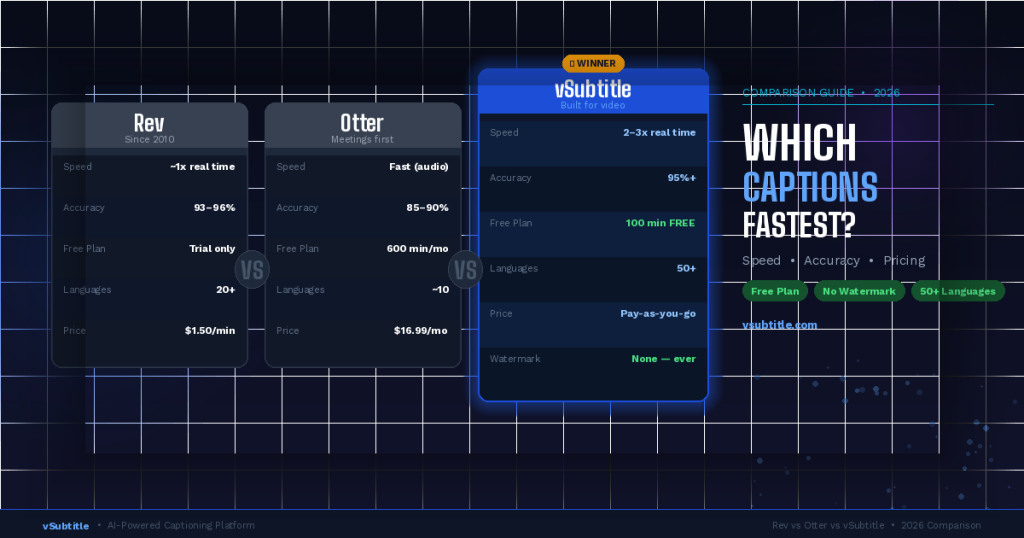
Rev vs Otter vs vSubtitle: Which AI Captioning Tool Is Fastest? (2026)

If you’ve been searching for the best AI captioning tool, you’ve probably come across Rev and Otter.ai β€” two of the most well-known names in the space. But in 2026, there’s a new contender that’s quietly outperforming both of them where it matters most: value for money and free plan generosity. We put all three tools through their paces β€” comparing speed, accuracy, pricing, free plans, language support, and ease of use β€” so you don’t have to. Whether you’re a solo creator, a freelancer subtitling client videos, or just someone who wants captions without a massive bill, this comparison will tell you exactly which tool to pick. πŸ’°  Spoiler: If you’re on a budget or just getting started, vSubtitle’s free plan is in a different league compared to Rev and Otter. Read on to see why. 1. Quick Overview: Rev, Otter.ai, and vSubtitle Before we dive into the detailed comparison, here’s a snapshot of each tool: Rev Rev is one of the oldest and most established players in the transcription and captioning space. It offers both AI-powered and human-powered captioning. Rev is known for high accuracy but comes at a premium price β€” especially once your free trial runs out. It’s popular with media companies and enterprises but can feel expensive for individual creators. Otter.ai Otter.ai started as a meeting transcription tool and has evolved into a broader AI notes and captioning platform. It’s widely used for transcribing Zoom calls, interviews, and podcasts. Its free plan is more generous than Rev’s but the tool is primarily optimised for meetings and spoken word notes β€” not video subtitle exports. vSubtitle vSubtitle is an AI-powered captioning platform built specifically for video creators and freelancers. It generates subtitles automatically in 50+ languages, lets you edit in a built-in timeline editor, and exports in SRT, VTT, or burned-in video format. Its free plan β€” 100 minutes with no watermark, no credit card β€” is the most generous of the three by a significant margin. 2. Head-to-Head Feature Comparison Feature Rev Otter.ai vSubtitle Winner Free Plan Trial only 600 min/month 100 min free(no card needed) vSubtitle No Watermark on Free No No Yes vSubtitle AI Auto-Captioning Yes Yes Yes Tie Languages Supported 20+ ~10 50+ vSubtitle SRT / VTT Export Yes Limited Yes vSubtitle Burned-in Video Export No No Yes vSubtitle Built-in Caption Editor Basic Basic Full timeline vSubtitle Human Captioning Option Yes No No Rev Designed for Video Partial Meetings only Yes vSubtitle Pricing Entry Point ~$1.50/min $16.99/mo Pay-as-you-go vSubtitle πŸ“Š  vSubtitle wins 7 out of 11 categories. Rev wins on human captioning. Otter is a distant third for video-specific workflows. 3. Speed: Which Tool Captions Fastest? Speed is one of the first things creators ask about. Nobody wants to wait 30 minutes for a 10-minute video to be captioned. Here’s how the three tools compare: Rev AI Rev’s AI processing runs at roughly 1x real time β€” a 10-minute video takes about 10 minutes to process. If you opt for human captioning (Rev’s premium offering), turnaround extends to 12–24 hours. Competitive on AI speed, but the human option significantly slows things down when you need it most. Otter.ai Otter processes audio quickly for meeting recordings, often under real time. However, Otter isn’t built for video file captioning. Uploading a video file and extracting a clean, usable SRT export is a cumbersome process. The speed advantage disappears once you factor in the manual workarounds required. vSubtitle vSubtitle processes video at 2–3x faster than real time. A 10-minute video is typically ready in 3–5 minutes. The output is immediately available in the built-in editor, and you can export in multiple formats in one click. Upload, generate, edit, export β€” the full workflow takes under 10 minutes for most videos. ⚑  For video-specific workflows, vSubtitle is the fastest end-to-end. Rev is competitive on raw AI speed but slower overall due to workflow friction. Otter isn’t suited for video captioning at all. 4. Accuracy: Who Gets It Right? Even the fastest tool is useless if you spend 30 minutes correcting every other word. Here’s where each tool stands on accuracy: Rev AI: ~93–96% Accuracy Rev’s AI model is well-trained and delivers strong accuracy for clear English speech. For AI-only captioning, expect 93–96% on clean audio. Where Rev truly stands apart is its human captioning option, which delivers near-perfect results for high-stakes content. Otter.ai: ~85–90% Accuracy Otter is solid for meeting transcriptions in a controlled environment. Accuracy drops noticeably with background noise, accents, or fast speech. For video content with multiple speakers or varying audio quality, Otter tends to require significantly more manual correction than the other two tools. vSubtitle: ~95%+ Accuracy vSubtitle’s AI model performs at par with Rev on standard video content, achieving 95%+ accuracy for clear audio. Where it genuinely outperforms both competitors is on multilingual content β€” Rev and Otter are heavily English-optimised, while vSubtitle handles 50+ languages natively with consistently high accuracy across all of them. 🎯  Rev and vSubtitle are neck-and-neck on English accuracy. For multilingual content, vSubtitle wins clearly. Otter trails both for video use cases. 5. Pricing: Where vSubtitle Wins by a Mile This is where the comparison gets most interesting β€” and where vSubtitle separates itself most clearly from the competition. Plan Rev Otter.ai vSubtitle Notes Free Plan Trial only(very limited) 600 min/month(no video export) 100 min FREENo watermarkNo card needed vSubtitle: only watermark-free free plan Entry Paid ~$1.50/min(AI captioning) $16.99/mo(Pro plan) Pay-as-you-go(affordable/min) Rev charges per minute; Otter is subscription Human Captions $1.50/min(standard) Not available Not available Rev only for 100% accuracy Watermark-Free Paid only Paid only Free plan too Major advantage for vSubtitle Export Formats SRT, VTT Limited SRT, VTT, MP4(burned-in) vSubtitle most flexible Breaking Down the Free Plans Rev’s free plan is essentially a trial β€” you get a limited taste before the paywalls kick in. There’s no ongoing free access for regular use. Otter’s free plan gives you 600 minutes per month, which sounds generous β€” but it’s built for meeting transcription, not video

How to Add Subtitles to a Video for Free
Subtitling Guides

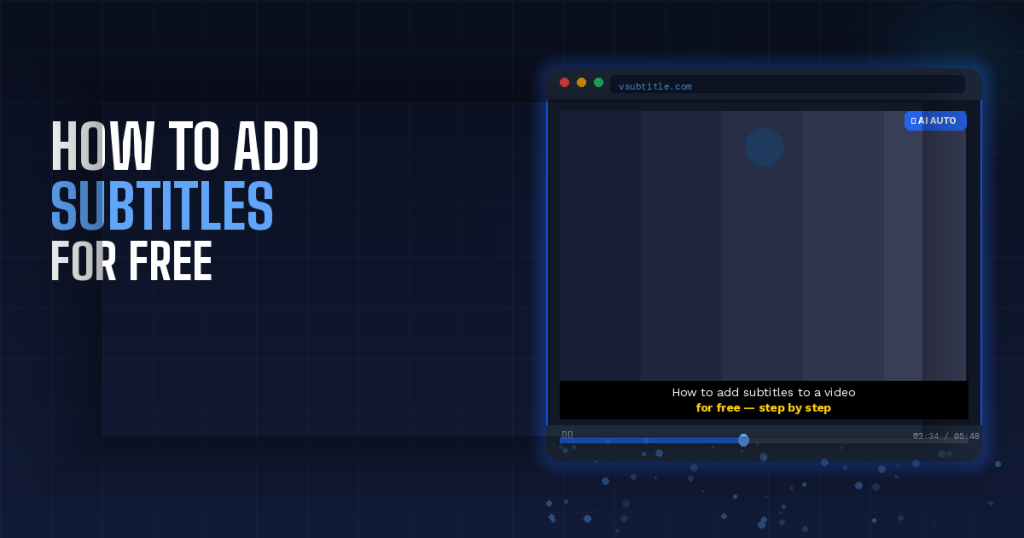
How to Add Subtitles to a Video for Free in 2026 (Step-by-Step)

Did you know that 85% of social media videos are watched without sound? Or that videos with captions get up to 40% more views than those without? In 2026, adding subtitles isn’t a nice-to-have β€” it’s one of the smartest things you can do for your content. Whether you’re a YouTuber, a freelancer producing client videos, a teacher posting course content, or someone just trying to make your Instagram Reels more engaging β€” this guide covers everything you need. We’ll walk you through the fastest free method using AI, plus manual and platform-native options, so you can choose what works best for your workflow. No experience required. Quick win: If you’re in a hurry, jump to Section 3 β€” it’s the fastest method and takes under 2 minutes to get started. 1. Why Adding Subtitles to Your Videos Matters in 2026 Before we get into the how, let’s quickly cover the why β€” because understanding the value of subtitles will change how you think about every video you make. Accessibility Over 430 million people worldwide have disabling hearing loss, according to the World Health Organization. Subtitles make your content accessible to this audience β€” and in many regions, captioning is a legal requirement for public-facing video content. Most Videos Are Watched on Mute Autoplay videos on Facebook, Instagram, LinkedIn, and TikTok play silently by default. Without captions, your message is literally invisible to a huge portion of your audience. Burned-in subtitles ensure your content communicates even in a noisy coffee shop or a quiet office. Better SEO and Discoverability Search engines can’t watch videos β€” but they can read text. When you add a subtitle file (SRT or VTT) to your video on YouTube or your website, those words become indexable content. This directly improves how your video ranks for relevant search queries. Higher Watch Time and Retention Viewers who have captions available tend to watch longer. Subtitles give context, aid comprehension for non-native speakers, and reduce cognitive load β€” all of which translate to longer watch sessions and better platform rankings. Bottom line: Subtitles improve accessibility, SEO, reach, and engagement simultaneously. It’s one of the highest-ROI things you can do for any video. 2. Types of Subtitles: What’s the Difference? Not all subtitles are created equal. Before you pick a method, it helps to understand the two main types: Open Captions (Burned-In / Hardcoded) These subtitles are permanently embedded into the video frame. Viewers can’t turn them on or off β€” they’re always visible. This is ideal for social media platforms like Instagram, TikTok, and LinkedIn where external caption files aren’t always supported. Closed Captions (SRT / VTT Files) These are separate text files attached to the video. Viewers can toggle them on or off. YouTube, Vimeo, and most streaming platforms support closed captions via SRT or VTT file uploads. They’re also editable after the fact without re-exporting your video. Here’s a quick comparison of the main subtitle methods: Method Accuracy Speed Best For Platform Auto-Captions (YouTube/TikTok) Medium (70–85%) Instant Casual content, quick drafts Manual Typing High (100%) Very Slow Short clips, high-stakes content SRT File Upload Depends on source Fast (if file ready) Pre-existing subtitle files AI Subtitling Tool (e.g., vSubtitle) Very High (95%+) Fast (2–5 min) All content types β€” recommended For most creators and freelancers, an AI subtitling tool gives you the best balance of speed, accuracy, and flexibility β€” especially when you’re working with multiple videos. 3. The Fastest Free Method: Add Subtitles Using vSubtitle (AI-Powered) vSubtitle is an AI-powered captioning platform that automatically generates accurate subtitles in minutes. It supports 100+ languages, lets you edit captions in a built-in editor, and exports in SRT, VTT, or as a burned-in video file β€” all from your browser. Best of all: you get 100 free minutes when you sign up. No credit card needed. Step-by-Step: Add Subtitles for Free with vSubtitle Step 1: Create Your Free Account Head to vsubtitle.com and click ‘Start for Free’. Sign up takes under 60 seconds β€” no credit card required. Your account comes loaded with 100 free minutes of AI captioning. Step 2: Upload Your Video Once logged in, click ‘New Project’ and upload your video file. vSubtitle supports all major formats including MP4, MOV, AVI, MKV, and more. You can also paste a YouTube URL directly if you’d prefer not to download the file first. Step 3: Select Your Language Choose the spoken language in your video. vSubtitle supports over 100 languages including English, Spanish, Hindi, French, German, Arabic, Portuguese, and more. If your video has a mix of languages, select the primary one. Step 4: Let the AI Generate Your Subtitles Click ‘Generate Captions’ and let the AI do its work. vSubtitle processes most videos at 2–3x faster than real time β€” so a 10-minute video is ready in roughly 3–5 minutes. You’ll get a notification when it’s done. Step 5: Review and Edit in the Caption Editor Once generated, open your project in the built-in editor. You’ll see each subtitle line alongside the video timeline. Fix any errors, adjust timing, split or merge lines, and style the text as needed. The editor makes it easy to spot and fix any words the AI misheard. Pro tip: AI accuracy is typically 95%+, but always review proper nouns, brand names, and technical terms β€” these are the most common places where corrections are needed. Step 6: Export Your Subtitles When you’re happy with the captions, choose your export format: β€’ Β  Β  Β  SRT file β€” upload to YouTube, Vimeo, LinkedIn, or your website β€’ Β  Β  Β  VTT file β€” ideal for HTML5 video players and web publishing β€’ Β  Β  Β  Burned-in video β€” subtitles baked into the video, perfect for Instagram, TikTok, and Facebook ⏱️  Total time from upload to exported subtitles: under 10 minutes for most videos. That’s the power of AI captioning. 4. Other Free Methods to Add Subtitles If you want to explore alternatives, here are the most commonly used free tools

Scroll to Top