

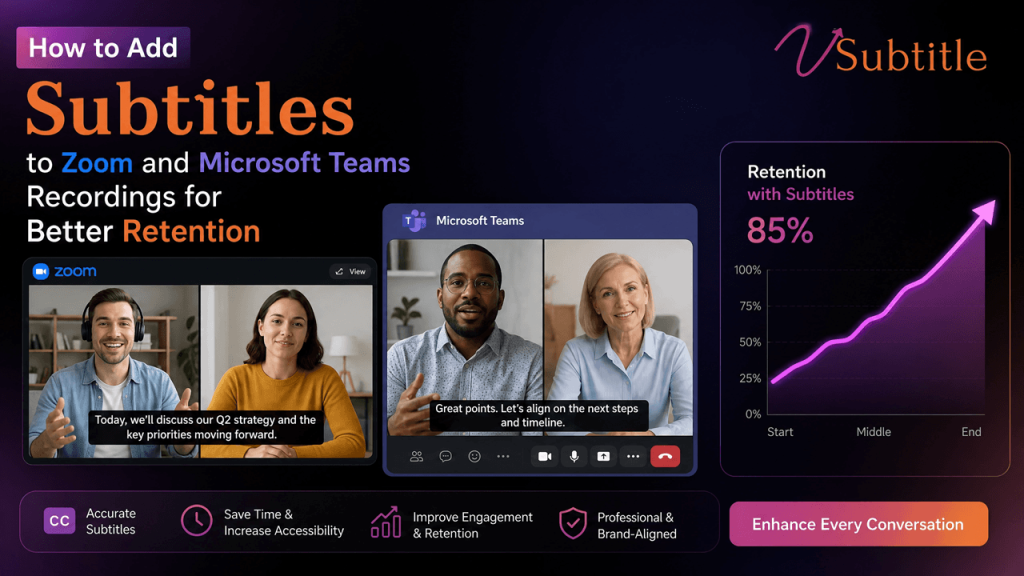
How to Add Subtitles to Zoom and Microsoft Teams Recordings for Better Retention
If you’ve ever rewatched a Zoom meeting recording or a Teams call at 1.5x speed with the sound half-muted in a shared office, you already know the problem: people don’t actually watch recordings, they skim them. And when they skim, they miss things. Subtitles fix that. They turn a passive recording into a scannable, searchable, retainable piece of content that works whether someone is watching with sound on, sound off, in a noisy commute, or in a completely different language. In this guide, we’ll walk through exactly how to add subtitles to Zoom and Microsoft Teams recordings, why captions have such a measurable impact on retention and comprehension, and how a dedicated tool like vSubtitle can turn a manual, hour-long chore into a five-minute upload. Why Subtitles Improve Retention for Meeting Recordings Before jumping into the how-to, it’s worth understanding why this small addition makes such a big difference. How to Add Subtitles to Zoom Recordings Zoom offers a couple of native options, plus the option to bring in a dedicated captioning tool for better accuracy and editing control. Option 1: Zoom’s Built-In Cloud Recording Captions If you’re on a Zoom plan with cloud recording, Zoom can generate automatic transcripts and captions for recordings stored in the cloud. This works well for basic needs, but Zoom’s auto-generated captions can struggle with technical vocabulary, accents, overlapping speakers, and non-English audio — and editing them inside Zoom’s interface is limited. Option 2: Export the Recording and Add Subtitles with an AI Tool For meetings where accuracy actually matters — sales calls, training sessions, webinars, all-hands recordings — exporting the video and running it through a dedicated captioning tool like vSubtitle gives you far more control. This approach is especially useful for recordings that will live permanently on a shared drive, LMS, or public webpage, where relying on Zoom’s native (and sometimes temporary) transcript isn’t reliable enough. How to Add Subtitles to Microsoft Teams Recordings Microsoft Teams has similarly evolved its native captioning, but the workflow and reliability differ depending on where the recording is stored and how it’s shared. Option 1: Live Captions During the Meeting Teams allows live captions to be turned on during a call, which some organizations use as a starting point. This is helpful for real-time accessibility during the call itself, but live captions are not the same as a polished, edited subtitle file — they’re generated on the fly and often contain errors that go uncorrected. Option 2: Teams/Stream Recording Transcripts Recordings saved to Microsoft Stream (or OneDrive/SharePoint, depending on your organization’s setup) typically come with an auto-generated transcript. As with Zoom, the accuracy of Microsoft’s automatic transcript depends heavily on audio quality, accents, and technical terminology — and downstream editing tools are limited. Option 3: Use vSubtitle for Polished, Editable Teams Captions For recordings you plan to repurpose — internal training libraries, customer-facing demos, onboarding content — running the exported Teams recording through vSubtitle gives you a consistent, high-accuracy result regardless of where the meeting was hosted. Best Practices for Subtitles That Actually Improve Retention Adding captions is only half the job. How they’re formatted and used matters just as much for whether viewers actually retain the information. Why Use a Dedicated Tool Instead of Native Captions Alone Zoom and Teams both offer decent starting points, but their native captioning tools are built for real-time accessibility during a live call, not for producing a clean, reusable subtitle asset afterward. A dedicated AI subtitling platform like vSubtitle closes that gap by combining speed, accuracy, and an editor built specifically for refining captions before they go out to a wider audience. Frequently Asked Questions Final Thoughts Native captions in Zoom and Teams are a reasonable starting point for live accessibility, but they’re rarely the best long-term solution for recordings you plan to reuse, share externally, or repurpose across teams and languages. Exporting your recording and running it through a dedicated AI captioning platform gives you higher accuracy, an editor to fix the details, automatic transcription misses, and translation options that native tools don’t offer. If better retention, accessibility, and reach are the goal, pairing your Zoom or Teams workflow with vSubtitle turns every recording into content people can actually watch, read, search, and remember — no matter where or how they’re watching it.