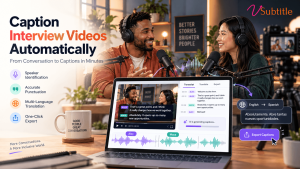
Interview videos are some of the most valuable content a team can produce. They carry expert opinions, customer stories, hiring conversations, research findings and brand credibility. They are also some of the hardest videos to caption by hand, because they are long, unscripted and full of people talking over each other.
The good news is that you no longer need to type every line yourself. In this guide, you will learn how to caption interview videos automatically, from uploading your file to publishing polished captions. We will walk through a practical workflow using vSubtitle, explain how to handle multiple speakers and tricky audio, and share tips that keep your captions accurate, readable and accessible.
Key Takeaways
- Automatic captioning is now practical for interviews. An AI caption generator can produce a full, time-coded draft of an interview in minutes instead of hours.
- The workflow is simple: upload the video, choose your languages and style, generate the captions, review them in an editor, export SRT or VTT, and publish.
- Interviews have special challenges: multiple speakers, crosstalk, guest names, jargon and remote-call audio all need a quick human review.
- vSubtitle suits this job. It offers up to 97.8% accuracy, 100+ languages, a customizable editor, collaboration tools, and SRT, VTT and JSON exports, with the first 30 minutes free for new users at the time of writing.
- Readable captions matter as much as accurate ones. Keep lines short, break them naturally and show who is speaking when it is not obvious.
- Captions make interviews accessible and shareable, helping sound-off viewers, deaf and hard-of-hearing audiences, and international viewers through translation.
Why You Should Caption Interview Videos
Before the how, a quick look at the why. Captions turn a good interview into one that more people can actually watch and use.
- Viewers watch without sound. Interview clips on social feeds, websites and in meetings are often played silently. Captions keep people engaged long enough to hear the message.
- Accessibility is a baseline expectation. Deaf and hard-of-hearing viewers rely on captions to follow what is said. Our ultimate guide to video accessibility explains how to build it into your process, and our post on making video content deaf-friendly covers the practical side.
- Accents and fast speech become easier to follow. Guests speak at different speeds and with different accents. Captions help every viewer keep up.
- Text makes interviews reusable. Time-coded captions become the starting point for transcripts, pull quotes, article summaries and short promotional clips.
- Translation opens new audiences. An interview recorded in one language can reach viewers worldwide when you add translated subtitles.
What Makes Interview Videos Harder to Caption
Interviews are not like scripted explainers. Knowing the common trouble spots helps you choose the right tool and know where to look during review.
- Two or more speakers. Captions need to follow quick back-and-forth exchanges, and viewers should be able to tell who is talking.
- Crosstalk and interruptions. People overlap, laugh and finish each other’s sentences, which is difficult for any automatic system.
- Names and specialist terms. Guest names, company names, job titles and technical vocabulary are the most common source of mistakes.
- Variable audio quality. On-location recordings have background noise, and remote interviews carry echo, lag and compression.
- Filler words and false starts. Natural speech includes “um”, repeated words and abandoned sentences, so you need to decide how much of it to keep.
Choose a tool that gives you an accurate first draft and a fast editor. That combination handles most of these issues without turning captioning into a full-time job. If you are new to the technology, our beginner guide to AI subtitling is a good primer.
Why Use vSubtitle to Caption Interviews Automatically
vSubtitle was built for teams and creators who work with speech-heavy video, and interviews are a natural fit. Here is what it brings to the process.
- High accuracy. vSubtitle reports up to 97.8% accuracy using neural models that understand context, which gives you a strong first draft of even conversational speech. Results always depend on audio quality, so test it on your own footage.
- Speed. The platform processes hours of footage in minutes and reports about three times faster processing than traditional methods, so captions are ready when your edit is.
- An editor built for quick corrections. Fix a misspelled guest name, adjust timing or change styling in one place, with the video playing alongside.
- 100+ languages. Caption in the language spoken, then translate for international viewers in the same workflow.
- Flexible exports. Download SRT or VTT for most video platforms, JSON for structured workflows, or embed captions directly into the video.
- Team collaboration. Producers, editors and subject experts can review the same captions together through review workflows and real-time collaborative editing.
- Straightforward pricing. Billing is based on output minutes, and re-downloading a set you have already generated does not use extra minutes. New users can currently start with their first 30 minutes free.
You can try it with the auto caption generator or the auto subtitle generator, and the YouTube video caption generator is handy for interviews you plan to publish on YouTube.
How to Caption Interview Videos Automatically: Step-by-Step
Follow this workflow for any interview, from a five-minute customer testimonial to a one-hour expert conversation.
Step 1: Prepare your interview video
Finish your edit before you caption. If you cut or reorder footage after generating captions, the timing will no longer match. Export your final video in a standard format, and if there is a clean audio version without music or heavy effects, use the best-quality file you have. Clearer audio gives the AI a better chance of getting every word right.
Step 2: Upload the video to vSubtitle
Create a free account at register.vsubtitle.com and upload your video by dragging and dropping the file. Because new users can start with free minutes, you can test the whole workflow on a real interview before you pay for anything.
Step 3: Choose your language and caption settings
Select the language spoken in the interview. If you want subtitles for international viewers, add your target languages now so everything is generated in one run. Choose a caption style that matches your brand and platform, including font, size and placement. For interviews, a clean, high-contrast style that does not cover the speakers’ faces usually works best.
Step 4: Generate the captions
Start the process and let the AI do the heavy lifting. Processing happens in the cloud, so you can get on with other work, such as writing the video description or preparing thumbnails, while your captions are created.
Step 5: Review and edit in the editor
This is the most important step for interviews. Play the video and scan the captions with these checks in mind:
- Names and titles: verify the spelling of every guest, company and job title.
- Numbers and facts: check statistics, dates, prices and quoted figures.
- Technical terms: correct any specialist vocabulary the AI may have misheard.
- Speaker changes: make sure it is clear when the speaker changes, using the convention described in the next section.
- Overlapping speech: listen again to any moments where two people talk at once and decide what the viewer needs to see.
You do not need to re-read every word. Watch with the audio on, fix what stands out, and spend extra attention on the first and last minute, where introductions and calls to action tend to live.
Step 6: Export your captions
Download your captions as an SRT or VTT file. SRT is the most widely supported format, while VTT is common for web players. If you are unsure which to pick, our SRT vs VTT vs ASS format guide explains the differences. For social clips, you can embed the captions directly into the video so they are always visible.
Step 7: Publish and test
Upload the caption file to your video platform, attach it to the correct language track, and play the video with the sound off to confirm everything looks right. On YouTube, for example, you add the file through the Subtitles section of YouTube Studio. For a broader walkthrough, see how to add subtitles to a video for free.
Caption Style Tips for Interview Videos
Accurate words are only half the job. Captions also need to be comfortable to read while viewers watch faces and body language. These guidelines work well for most interviews.
- Keep lines short. Aim for one or two lines on screen at a time, with a moderate number of characters per line so mobile viewers can read comfortably.
- Break lines at natural points. Split between phrases rather than in the middle of a name or a verb phrase.
- Give captions enough time on screen. Fast speakers can produce text that disappears before it can be read, so lightly condense or adjust timing where needed.
- Identify speakers clearly. When the speaker is not obvious from the picture, add a name label or a dash at the start of a new speaker’s line. Choose one convention and stay consistent across the whole video.
- Decide on verbatim or clean text. Verbatim captions keep every filler word. Clean captions remove “um” and false starts, which usually reads better for marketing and educational interviews. Keep verbatim for legal, research or journalistic contexts where exact wording matters.
- Include meaningful sounds. If laughter, applause or an off-camera sound changes the meaning, add a short description in brackets for accessibility.
- Keep placement clear of faces and graphics. Move captions if a lower-third name title would overlap.
Special Cases: Remote, Multi-Guest and Multilingual Interviews
Remote interviews
Video-call recordings often include echo, compression and lag. Ask guests to wear headphones and use a quiet room, and expect to spend a little more time reviewing. Our guide to adding subtitles to Zoom and Teams recordings covers this setup in detail.
Panel and multi-guest interviews
The more voices, the more speaker changes and overlaps. Use consistent speaker labels, and consider running a quick second review with someone who knows the participants and can confirm names and roles.
Multilingual interviews
If your guest speaks another language, you can caption in the original language and add translated subtitles for your audience. Machine translation gives you a fast, practical foundation, and a native speaker should review anything customer-facing or brand-critical. Our AI video translator page and our post on multilingual captions and watch time explore this in more depth.
Who Benefits Most From Automatic Interview Captions?
- Marketing and brand teams: customer testimonials, founder interviews and case-study videos become easier to share when captions are ready fast.
- HR and recruitment teams: recorded interviews and employer-brand videos benefit from accessible, searchable text. Related reading: subtitles for corporate training videos.
- Journalists and documentary makers: captions speed up review and publishing, though exact quotes should always be verified against the audio.
- Researchers and educators: recorded expert interviews can be reviewed and shared more easily. See how this works in medical education and online courses.
- Video podcasters: long conversations are ideal for AI captioning. See our guide to the best AI subtitle generator for podcasts.
- YouTube creators: interview series gain reach through captions and translations. Read about the best AI subtitle generator for YouTube creators.
A Note on Consent, Privacy and Sensitive Interviews
Interviews often contain personal or confidential information. Before you upload any recording, make sure you have the guest’s consent to record and publish, and follow your organisation’s data policies. For highly sensitive or regulated material, such as legal proceedings, treat AI captions as a draft and have an expert verify them. Our article on AI subtitling for legal depositions discusses accuracy, security and compliance in more detail, and our comparison of AI vs human captioning can help you decide where human review is essential.
Common Mistakes to Avoid
- Publishing the raw AI draft. Even strong AI makes mistakes with names. Always give captions a short review.
- Captioning before the edit is final. Cuts and re-ordering break the timing.
- Inconsistent speaker labels. Switching between names, dashes and nothing at all confuses viewers.
- Ignoring mobile readability. Tiny text or long lines are hard to read on a phone.
- Forgetting to test with sound off. It is the fastest way to find timing and placement issues.
Final Thoughts
Learning how to caption interview videos automatically is one of the best ways to save time while making your content more accessible and more shareable. The process is straightforward: upload, generate, review, export and publish. The real skill is in the review, where a few minutes of attention turns a good AI draft into captions you can trust.
With high accuracy, fast processing, 100+ languages, a flexible editor and collaboration tools, vSubtitle gives interview-heavy teams everything they need in one place. Create a free account, upload your next interview using the free minutes available to new users, and see how quickly you can go from raw footage to finished captions.
Frequently Asked Questions (FAQs)
How do I caption an interview video automatically?
Upload the finished video to an AI caption generator such as vSubtitle, choose the spoken language and caption style, generate the captions, review them in the editor, then export an SRT or VTT file and upload it to your video platform. The whole process can take minutes plus a short review.
How accurate are automatic captions for interviews?
Accuracy depends on audio quality, accents, crosstalk and specialist vocabulary. vSubtitle reports up to 97.8% accuracy, which gives a strong draft. Always review guest names, numbers and technical terms before publishing.
How do I show who is speaking in interview captions?
Use one consistent convention, such as a name label or a dash at the start of each new speaker’s line, and apply it throughout the video. You can add these in the vSubtitle editor while you review the captions.
Should interview captions be verbatim or cleaned up?
For marketing, education and general publishing, clean captions that remove filler words usually read better. For legal, research or journalistic interviews where exact wording matters, keep verbatim text and verify it against the audio.
Can I caption an interview recorded on Zoom or Teams?
Yes. Export the recording as a video file, upload it to vSubtitle and follow the same workflow. Remote audio can include echo or compression, so allow a little extra time for review.
Can I translate interview captions into other languages?
Yes. vSubtitle supports more than 100 languages, so you can caption in the original language and generate translated subtitle files. Have a native speaker check translations that are customer-facing or brand-critical.
Which caption file format should I use for interview videos?
SRT is the most widely supported and works on most video platforms, while VTT is common for web players. vSubtitle exports both, plus JSON, and can also embed captions directly into the video.
Relevant Articles
Keep exploring with these related guides from the vSubtitle blog:
- Best AI Subtitle Generator for Podcasts – Subtitle workflows for long, conversational recordings.
- Best AI Subtitle Generator for YouTube Creators – What to look for when captioning videos for YouTube.
- Add Subtitles to Zoom and Teams Recordings – Caption remote interviews and meeting recordings.
- AI Subtitling for Beginners – A simple introduction to how AI subtitling works.
- SRT vs VTT vs ASS: Subtitle Format Guide – Choose the right caption file format.
- The Ultimate Guide to Video Accessibility – Why accurate captions matter for every audience.
- AI vs Human Captioning in 2026 – When to rely on AI and when to add human review.