

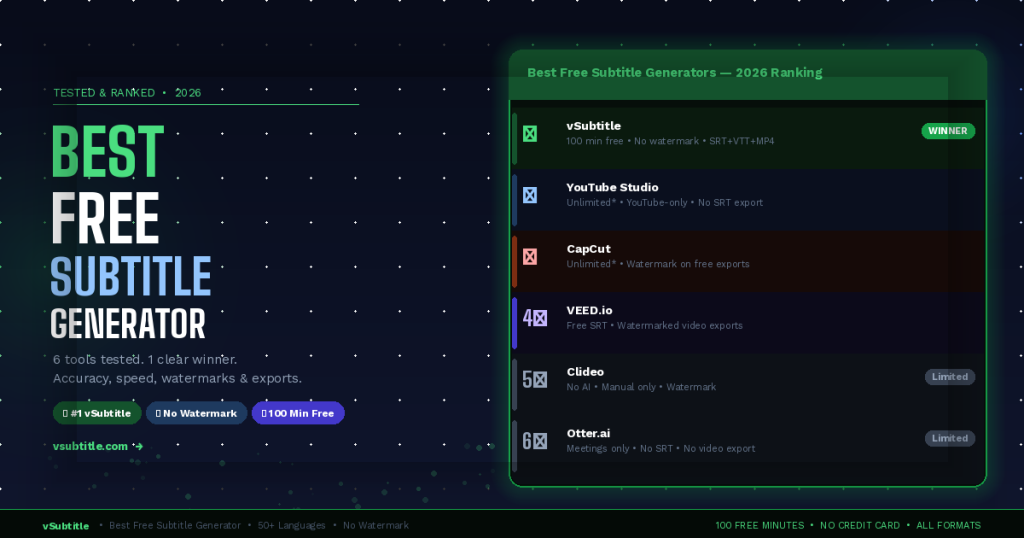
What Is the Best Free Subtitle Generator in 2026? (Tested & Ranked)
There are dozens of subtitle generators available in 2026 — and most of them have a catch. A watermark. A tiny free limit. An export paywalled behind a subscription. Or auto-generated captions that are riddled with errors. We tested the most popular free subtitle tools so you don’t have to — evaluating each one on accuracy, speed, free plan generosity, export formats, watermarks, and ease of use. Whether you’re a YouTube creator, a freelancer captioning client videos, or just someone who needs to subtitle a single video, this guide gives you a straight answer. 🏆 Bottom line up front: vSubtitle is the best free subtitle generator in 2026 for most users — 100 free minutes, no watermark, no credit card, 50+ languages, and a full editing suite. We’ll show you exactly how it compares to the alternatives. 1. What to Look for in a Free Subtitle Generator Not all free plans are created equal. Before we get into the rankings, here are the criteria that actually matter: Criteria Why It Matters Free minute limit How much content can you caption before hitting a paywall? 100 minutes is very different from a 5-minute trial. Watermark policy Many free tools stamp a visible watermark on exported videos — unusable for professional or client work. Accuracy AI captioning accuracy ranges from 70% to 95%+. Low accuracy means hours of manual correction. Export formats Can you export SRT, VTT, and burned-in video? Or only one format behind a paywall? Languages Does it support your video’s language? English-only tools are useless for multilingual content. Editing interface Can you correct errors, adjust timing, and split lines in-browser? Or do you need a separate tool? No credit card Does the free plan require a card to start? Many creators don’t want to enter payment details upfront. 2. The Best Free Subtitle Generators in 2026 — Ranked 🥇 #1 vSubtitle — Best Overall Free Subtitle Generator🆓 Free plan: 100 minutes — no watermark, no credit card, full exports included👤 Best for: YouTube creators, freelancers, course creators, social media — anyone who needs fast, accurate, professional results🎯 Accuracy: 95%+ on clear audio. Full timeline editor to correct errors. Best-in-class for multilingual content.📁 Exports: SRT, VTT, burned-in MP4 — all available on the free planVerdict: vSubtitle is the only tool that gives you a genuinely usable free plan: 100 minutes, zero watermark, all export formats unlocked. For most creators and freelancers, this is enough to subtitle dozens of videos before needing to pay anything. Here’s what makes vSubtitle stand apart from every other free option on this list: 🥈 #2 YouTube Studio Auto-Captions — Best Free Option for YouTube-Only Creators🆓 Free plan: Unlimited — free for all YouTube videos, no account cap👤 Best for: Creators who publish exclusively on YouTube and don’t need to export caption files🎯 Accuracy: 70–85% for clear English. Lower for accents, fast speech, or non-English. Must be manually edited for accuracy.📁 Exports: Edit within YouTube Studio only. No SRT download on free — captions stay inside YouTube.Verdict: YouTube’s auto-captions are the default go-to — but they’re a starting point, not a finished product. The accuracy is inconsistent, the editor is basic, and you can’t take the captions anywhere else without paying for a third-party tool. Good if you never leave YouTube. 🥉 #3 CapCut — Best Free Tool for Short-Form Social Video🆓 Free plan: Free auto-captions for short clips — watermark on exports in free tier👤 Best for: TikTok and Instagram Reels creators making short-form content under 10 minutes🎯 Accuracy: 80–88% for clear speech. Good for conversational content; struggles with technical terms.📁 Exports: Burned-in video export (watermarked on free). No SRT export on free plan.Verdict: CapCut is excellent for what it’s designed for — short social media clips. The auto-caption feature is genuinely fast and the styling options are great for Reels. But the watermark on free exports is a dealbreaker for professional use, and there’s no SRT export without upgrading. 4️⃣ #4 VEED.io — Polished Browser Tool — Limited Free Plan🆓 Free plan: Free tier available but adds VEED watermark to all video exports👤 Best for: Casual users testing subtitle features; not suitable for professional or client work on free plan🎯 Accuracy: 88–92% for clear English audio. Good editor interface.📁 Exports: SRT download available on free. Video export with watermark on free. VTT behind paywall.Verdict: VEED has one of the best-designed editing interfaces in the space — clean, intuitive, and well-built. But the watermark on free video exports makes it impractical for any serious use. If you only need an SRT file (not a burned-in video), VEED’s free tier works. Otherwise, you’ll hit the paywall quickly. 5️⃣ #5 Clideo — Simple Tool for Manual Subtitle Entry🆓 Free plan: Free tier with watermark. No auto-generation — manual text entry only.👤 Best for: One-off personal use where you already have the subtitle text and just need to embed it🎯 Accuracy: N/A — no AI auto-generation. You type every line yourself.📁 Exports: Burned-in video export (watermarked on free). No SRT export.Verdict: Clideo is a basic video tool, not a proper AI subtitle generator. There’s no speech-to-text — you type every subtitle manually and position it on screen. Fine for a 30-second clip with one line of text. Completely impractical for anything longer. 6️⃣ #6 Otter.ai — Meeting Transcription Tool — Not Built for Video🆓 Free plan: 600 min/month free — but designed for meetings, not video subtitle export👤 Best for: Meeting transcription and note-taking. Not recommended for video captioning workflows.🎯 Accuracy: 85–90% in meeting environments. Drops on video content with variable audio.📁 Exports: Text transcript only on free. No SRT export, no burned-in video, no timeline editor.Verdict: Otter’s free plan is generous in minutes, but it’s the wrong tool for video subtitling. There’s no SRT export, no timeline editor, and no burned-in video output. Getting a usable subtitle file out of Otter for a YouTube video is a multi-step workaround. Use it for meetings — not for video captions. 3. Side-by-Side Comparison Table Feature vSubtitle YouTube CapCut