Your video can only reach the people who understand the language it is spoken in, unless you give everyone else a way in. Translated subtitles are the fastest and most affordable way to do that. They let a single video serve audiences in Spanish, Hindi, Arabic, French, Portuguese and dozens of other languages, without re-shooting, re-recording or hiring a dubbing studio.
The challenge used to be effort. Transcribing, timing and translating subtitles by hand for even one language could take a day. Today, AI handles most of the heavy lifting. In this guide you will learn how to translate video subtitles automatically, step by step, using vSubtitle, and how to review the results so your translated subtitles read naturally and stay accurate.
Key Takeaways
- Translating subtitles automatically is a three-part process: transcribe the speech, translate the text, and keep the timing aligned. An AI subtitle generator does all three in one workflow.
- Start with an accurate source transcript. Any error in the original language gets carried into every translation, so fix the source first.
- Review matters most for translations. Machine translation is a strong first draft, but idioms, humour, brand voice and technical terms deserve a native-speaker check on important videos.
- vSubtitle supports 100+ languages. It also offers up to 97.8% accuracy, a customizable editor, collaboration tools, and SRT, VTT and JSON exports, with the first 30 minutes free for new users at the time of writing.
- Plan for different text lengths and scripts. Some languages take more space than others, and non-Latin scripts need correct encoding and readable styling.
- Publish one subtitle track per language, named clearly, so viewers can choose their own language.
Why Translate Your Video Subtitles?
Translation turns a good video into a global one. Here is what creators, educators and businesses gain.
- Bigger audiences. Viewers are far more likely to watch to the end when they can follow along in their own language. Read how multilingual captions can double YouTube watch time.
- Lower cost than dubbing or re-shooting. Subtitles need no new recording sessions, voice actors or studio time.
- Better accessibility. Subtitles help viewers who are learning a language, watching without sound or finding spoken audio hard to follow. See our ultimate guide to video accessibility.
- Faster market testing. You can find out which regions respond to your content before investing in localised versions.
- Consistent training and communication. Global teams can learn from the same videos, whatever language they work in. Explore subtitles for corporate training videos.
How Automatic Subtitle Translation Works
Understanding what happens behind the scenes helps you spot where problems can arise.
- Speech recognition. The AI listens to the audio and transcribes it into text in the original language.
- Segmentation and timing. The text is split into subtitle blocks, and each block is aligned to the moment it is spoken.
- Machine translation. Each subtitle is translated into the target language, ideally with awareness of the surrounding context.
- Formatting. The translated text is fitted back into the same timed blocks, then exported as a subtitle file.
Because every translation depends on the first transcript, accuracy at step one is the foundation. That is why choosing an accurate source transcript, and reviewing it, comes before anything else. If you are new to the technology, our beginner guide to AI subtitling explains the first two steps in more detail.
Why Use vSubtitle to Translate Video Subtitles
vSubtitle is an AI subtitling and captioning platform built to take a video from raw footage to finished, multilingual subtitles in one place.
- 100+ languages. Generate subtitles in the spoken language and add translations for the audiences you want to reach, all in the same workflow.
- High-accuracy source transcripts. vSubtitle reports up to 97.8% accuracy using neural models that understand context, which gives every translation a strong starting point. Results depend on audio quality, so test it on your own footage.
- Fast cloud processing. The platform processes hours of footage in minutes and reports about three times faster processing than traditional methods.
- A customizable editor. Review the original and translated text, fix terms, adjust timing and refine styling before you download.
- Team collaboration. Review workflows and real-time collaborative editing let a translator or native-speaking colleague check subtitles alongside you.
- Flexible exports. Download SRT, VTT or JSON for each language, or embed captions directly into the video.
- Simple billing. Billing is based on output minutes, and re-downloading a set you have already generated does not use extra minutes. New users can currently start with their first 30 minutes free.
You can start with the auto subtitle generator or the auto caption generator, and explore translation-focused options on the AI video translator page.
How to Translate Video Subtitles Automatically: Step-by-Step
Step 1: Finish and lock your video
Complete your edit before you subtitle. If you trim or rearrange footage afterwards, timestamps in every language will drift out of sync, and you will have to redo the work for each translation. Use the best-quality audio you have, as clear speech gives the AI the best chance of an accurate transcript.
Step 2: Upload your video to vSubtitle
Create a free account at register.vsubtitle.com and upload your video by dragging and dropping the file. New users can start with free minutes, so you can test the full translation workflow on a real video before paying for anything.
Step 3: Select the source language and your target languages
Choose the language spoken in the video, then add each language you want subtitles in. Prioritise based on where your audience is, or where you want it to grow. Your analytics, customer locations and sales data are good starting points, and it is usually best to begin with two or three languages rather than twenty.
Step 4: Generate the subtitles and translations
Start the process. The AI transcribes the speech, times it and translates it into each target language. Processing runs in the cloud, so you can get on with other work while it finishes.
Step 5: Review the original-language subtitles first
Open the editor and check the source transcript before you look at any translation. Fix names, numbers, brand terms and technical vocabulary. Every correction here improves every translated version, which makes this the most efficient review you will do.
Step 6: Review each translation
Now check the translated subtitles. If you speak the language, read them with the video playing. If you do not, ask a native speaker or a trusted colleague to look them over, particularly for customer-facing or brand-critical content. Use the tips in the next section to guide the review.
Step 7: Export one file per language
Download your subtitles as SRT or VTT, one file for each language, and name them clearly using language codes, for example myvideo_en.srt, myvideo_es.srt and myvideo_hi.srt. If you are unsure which format to use, read our SRT vs VTT vs ASS format guide or our tutorial on how to create an SRT file automatically. For social clips, you can embed translated captions directly into the video.
Step 8: Publish each language as its own subtitle track
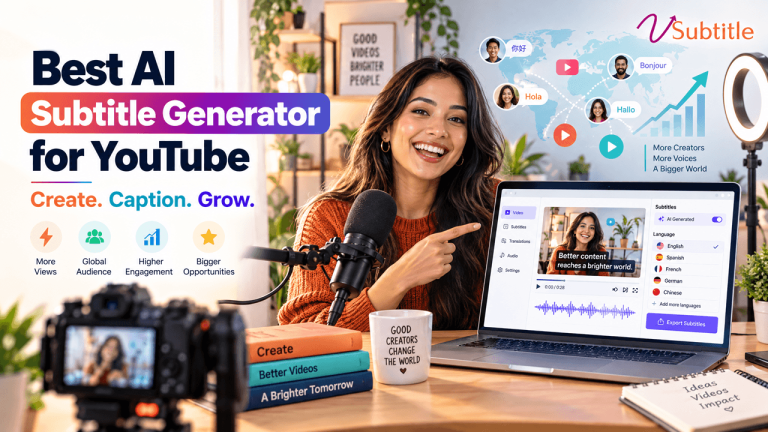
Upload each file to your video platform and attach it to the correct language. On YouTube, for example, you add each file through the Subtitles section of YouTube Studio and choose the matching language, so viewers can switch between them. Check the video with a few languages selected to confirm everything looks right. Our guide to the best AI subtitle generator for YouTube creators covers the YouTube side in more detail.
Tips for High-Quality Translated Subtitles
- Fix the source before you translate. A misheard word in the original becomes a wrong word in every language.
- Keep a glossary. List brand names, product names and key terms, noting which should stay untranslated and which have approved translations.
- Watch for idioms and humour. Phrases that work in one language often make no sense when translated word for word. Rephrase them in the source if the meaning matters.
- Allow for text expansion. Some languages need noticeably more characters than English to say the same thing, which can make subtitles too long to read in time. Shorten wording or split lines in the editor.
- Respect reading speed. Translated subtitles still need to stay on screen long enough to read comfortably. Check fast-talking sections carefully.
- Keep line breaks natural. Break lines between phrases, not in the middle of a name or a compound term.
- Handle names and titles consistently. Decide whether names, product names and job titles stay in the original language and apply that rule throughout.
- Check numbers, dates and units. Formats vary by region, such as date order and decimal separators, and mistakes here can mislead viewers.
- Use UTF-8 for non-Latin scripts. Languages such as Hindi, Arabic, Chinese and Russian need correct text encoding, or characters may appear as symbols.
- Check right-to-left languages on screen. Languages such as Arabic and Hebrew read right to left, so confirm punctuation and alignment look correct in the player.
How Much Review Does Each Translation Need?
You do not need the same level of checking for every video. Match the review to the risk.
| Content type | Examples | Recommended review |
|---|---|---|
| High stakes | Legal, medical, compliance, safety instructions, financial information | Full review by a qualified native speaker, ideally with subject knowledge |
| Brand-critical | Ads, product launches, landing page videos, founder messages | Native-speaker review for tone, idioms and brand voice |
| Standard | Tutorials, webinars, internal training, how-to videos | Skim review of key terms, numbers and the opening and closing minutes |
| Low risk | Casual clips, archive content | Spot-check a few minutes and fix glossary terms |
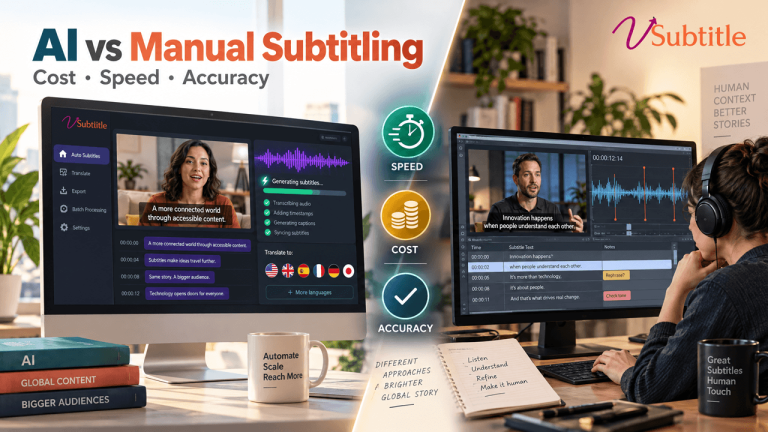
For sensitive material, treat the AI output as a draft. Our posts on AI vs human captioning and on medical educators and complex terminology explain where human expertise adds the most value.
Translated Subtitles vs Dubbing: Which Should You Choose?
| Factor | Translated subtitles | Dubbing or voice-over |
|---|---|---|
| Cost | Lower; no new recording needed | Higher; requires voice talent and audio production |
| Speed | Minutes for a draft, plus review | Days or weeks |
| Viewer experience | Viewers hear the original voice and read the translation | Viewers hear their own language; the original performance is replaced |
| Accessibility | Helps deaf and hard-of-hearing viewers and sound-off viewing | Does not replace captions |
| Best for | Most videos, especially tutorials, interviews, education and social content | Entertainment and audiences who prefer not to read while watching |
For most creators and businesses, subtitles are the best starting point, and they work alongside any later dubbing effort. Learn more about translation-focused workflows on our AI video translator page.
Who Benefits Most From Automatic Subtitle Translation?
- YouTube creators: translated tracks help new viewers find and follow your content. See how multilingual captions affect watch time.
- Online educators and course creators: international learners can follow lessons in their own language. Explore subtitles for online courses.
- Corporate training and HR teams: one training video can serve every regional office.
- Marketing teams: product videos and ads can be tested in new markets quickly.
- Video agencies and freelancers: translation is a natural paid add-on. Read about the best AI subtitle generator for video agencies and freelancers.
- Teams with large libraries: see how to batch process subtitles for multiple videos across several languages.
Common Mistakes When Translating Subtitles
- Translating before fixing the source transcript, which multiplies every error.
- Translating too many languages at once. Start with the markets that matter most, then expand.
- Ignoring text length. Overlong subtitles flash by too quickly to read.
- Skipping a native-speaker check on brand-critical content.
- Using inconsistent terms. Without a glossary, the same product may be translated three different ways.
- Forgetting encoding. Garbled characters make subtitles unreadable in non-Latin languages.
- Not testing on the platform. Always play the video with each language selected before you announce it.
Final Thoughts
Learning how to translate video subtitles automatically is one of the most effective ways to grow your audience without multiplying your workload. The process is straightforward: upload, choose languages, generate, review the source, review the translations, export and publish. The quality comes from the review, where a short check by the right person turns a fast machine draft into subtitles viewers can trust.
With 100+ languages, high accuracy, fast processing, a flexible editor and collaboration tools, vSubtitle gives you everything you need to take a video global. Create a free account, translate one of your videos using the free minutes available to new users, and see how quickly a new audience opens up.
Frequently Asked Questions (FAQs)
How do I translate video subtitles automatically?
Upload your video to an AI subtitle generator such as vSubtitle, choose the spoken language and your target languages, generate the subtitles, review the original and translated text in the editor, then export one SRT or VTT file per language and upload each to your video platform.
How accurate is automatic subtitle translation?
Accuracy depends on the quality of the source transcript, the language pair and the complexity of the content. vSubtitle reports up to 97.8% accuracy for transcription, which gives translations a strong base. Machine translation is a good first draft, but a native-speaker review is wise for important content.
Which languages can I translate subtitles into?
vSubtitle supports more than 100 languages, so you can generate subtitles in the original language and add translated versions for the audiences you want to reach. Start with the languages that matter most to your viewers.
Do I need a human to check translated subtitles?
For casual or low-risk videos, a quick skim is often enough. For brand-critical, legal, medical or compliance content, have a qualified native speaker review the translation before publishing.
Can I add multiple subtitle languages to one video?
Yes. Most video platforms, including YouTube, support multiple subtitle tracks per video, so viewers can choose their language. Upload one subtitle file per language and attach each to the correct language.
Are translated subtitles better than dubbing?
Subtitles are faster and much cheaper, and they keep the original voice, so they suit most tutorials, interviews, education and social content. Dubbing suits audiences who prefer to listen in their own language, and it does not replace the accessibility benefits of captions.
Why do my translated subtitles look too long or fast?
Some languages need more characters than others to express the same idea, so translated lines can run longer than the original. Shorten the wording, split lines or adjust timing in the editor so viewers have time to read comfortably.
Relevant Articles
Keep exploring with these related guides from the vSubtitle blog:
- Multilingual Captions Can Double YouTube Watch Time – Why translated subtitles grow your reach.
- How to Create an SRT File Automatically – Generate subtitle files for any platform.
- How to Batch-Process Subtitles for Multiple Videos – Scale subtitles and translations across a video library.
- Best AI Subtitle Generator for YouTube Creators – Subtitle workflows for YouTube channels.
- SRT vs VTT vs ASS: Subtitle Format Guide – Choose the right format for each language file.
- AI vs Human Captioning in 2026 – When to rely on AI and when to add human review.
- The Ultimate Guide to Video Accessibility – Why accurate captions matter for every audience.