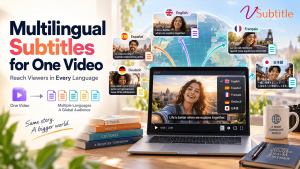
You have made one great video. Now you want viewers in several countries to enjoy it, each in their own language, without producing a separate version for every market. That is exactly what multilingual subtitles are for: a single video file with multiple subtitle tracks that viewers can switch between.
This guide focuses on that specific goal. You will learn how to create multilingual subtitles for one video from start to finish: choosing the right languages, generating every track in one workflow with vSubtitle, reviewing quality, naming files, and publishing so each viewer sees their own language. If you want a deeper look at the translation process itself, our guide on how to translate video subtitles automatically covers it in detail.
Key Takeaways
- One video can carry many subtitle languages. Viewers choose their track, so you do not need to publish separate videos for each market.
- Pick languages deliberately. Start with two or three that match your audience data, then expand once you see results.
- Generate all tracks from one source. Create an accurate original-language transcript first, then add every target language in the same workflow.
- vSubtitle supports 100+ languages. It also offers up to 97.8% accuracy, a customizable editor, collaboration tools, and SRT, VTT and JSON exports, with the first 30 minutes free for new users at the time of writing.
- Publish each language as its own track on platforms like YouTube, or add them to your own website with WebVTT files.
- Localise more than subtitles. Translated titles, descriptions and thumbnails help each language audience find and click your video.
Why Add Multiple Subtitle Languages to One Video?
- Wider reach from a single upload. Every added language opens a new audience, without a new shoot or a separate channel.
- One video to manage. Views, comments and engagement stay in one place instead of being split across several uploads.
- Viewer choice. People can read in their strongest language, whether that is their first language or the one they are learning.
- Better accessibility. Subtitles also help deaf and hard-of-hearing viewers and anyone watching without sound. Read our ultimate guide to video accessibility.
- Evidence-friendly growth. Once a language track is live, your analytics show whether that audience responds. See how this can play out in our post on multilingual captions and YouTube watch time.
Step 1: Choose Which Languages to Add
More languages is not automatically better. Every track needs checking, naming and maintaining, so choose with intent.
- Look at your existing data. Check your video analytics and website traffic for countries and languages that already watch your content.
- Follow your business goals. If you plan to sell in a particular market, subtitle for it first.
- Consider audience overlap. Some languages serve many countries at once, so one translation can reach several regions.
- Think about who is watching. Learners, customers and employees may each prefer different languages for the same video.
- Start small. Two or three languages is a manageable first batch. Add more after you have seen the results.
| Audience goal | Language selection approach |
|---|---|
| Grow an existing channel | Choose languages from your analytics where you already have viewers but low watch time. |
| Enter a new market | Pick the primary language of that market, and consider regional variants such as Latin American Spanish or Brazilian Portuguese. |
| Train a global workforce | Survey offices and teams, then cover the languages most employees use. |
| Teach international learners | Check where your students come from and add those languages first. |
Step 2: Start With an Accurate Source Transcript
Every translated track grows from the original-language subtitles, so any mistake there will be copied into all of them. That makes the source transcript the most valuable thing to get right. Finish your edit first, because later cuts break the timing in every language. Then generate and review the original subtitles, correcting names, numbers, brand terms and technical vocabulary.
vSubtitle reports up to 97.8% accuracy, which gives you a strong draft to polish. If you are new to AI subtitling, our beginner guide to AI subtitling explains how it works.
Why vSubtitle Works Well for Multilingual Subtitles
- 100+ languages in one place. Generate the original subtitles and add each target language without switching between tools.
- Accurate foundations. Up to 97.8% accuracy gives every translation a strong starting point. Results depend on audio quality, so test with your own footage.
- Fast cloud processing. The platform processes hours of footage in minutes and reports about three times faster processing than traditional methods, so several languages do not mean several days.
- A customizable editor. Review text, fix terms, adjust timing and refine styling for each language before you download.
- Collaboration. Review workflows and real-time collaborative editing let native-speaking reviewers check each language alongside you.
- Flexible exports. Download SRT, VTT or JSON for each language, or embed captions into a video.
- Simple billing. Billing is based on output minutes, and re-downloading a set you have already generated does not use extra minutes. New users can currently start with their first 30 minutes free.
Try it with the auto subtitle generator or the auto caption generator, and see the AI video translator page for translation-focused workflows.
Step 3: Generate Every Language in One Workflow
- Create your account at register.vsubtitle.com and upload your finished video.
- Select the spoken language of the video as the source.
- Add your target languages from the list you chose in Step 1.
- Pick one caption style to use across all languages, so every track looks consistent.
- Generate the subtitles. Processing runs in the cloud while you work on other tasks.
Because billing is based on output minutes, you can estimate the usage easily. A 10-minute video subtitled in four languages uses about 40 output minutes, plus the original language if you generate it as well. Check the current plan details for how originals and translations are counted.
Step 4: Review Each Language Track
Review in this order: original language first, then each translation. For translations, you are checking meaning and readability, not just spelling.
- Meaning and tone. Does the translation say what the speaker meant, in a natural way?
- Names and terms. Are brand names, product names and technical terms handled consistently, using your glossary?
- Length. Some languages run longer than others, so check that lines are short enough to read in time and split or shorten them if needed.
- Numbers, dates and units. Formats differ between regions, so confirm they make sense to local viewers.
- Script and direction. For non-Latin scripts and right-to-left languages such as Arabic or Hebrew, confirm the text displays correctly with UTF-8 encoding.
For brand-critical or high-stakes videos, ask a native speaker to review each translation. For lower-risk content, a skim of key terms and the first and last minute is often enough. Our article on AI vs human captioning can help you decide how much human review you need.
Step 5: Export and Name Your Subtitle Files
Download one file per language in the same format, and name them consistently with language codes. This makes uploading and troubleshooting much easier.
| Language | Language code | Example file name |
|---|---|---|
| English | en | product-demo_en.srt |
| Spanish | es | product-demo_es.srt |
| French | fr | product-demo_fr.srt |
| Hindi | hi | product-demo_hi.srt |
| Brazilian Portuguese | pt-BR | product-demo_pt-BR.srt |
SRT works on most platforms, while WebVTT (VTT) is the format used by web video players. If you are unsure which to pick, read our SRT vs VTT vs ASS format guide and our tutorial on how to create an SRT file automatically.
Step 6: Publish Each Language as a Separate Track
On YouTube
Open your video in YouTube Studio, go to the Subtitles section, and add each language in turn, uploading the matching file with timing. Viewers then choose their language from the subtitle menu. YouTube also lets you add translated titles and descriptions, which helps each language audience find and understand your video. Our guide to the best AI subtitle generator for YouTube creators covers this platform in more depth.
On your own website
If you host the video yourself with an HTML5 player, add each language as a separate text track using WebVTT files. The viewer can then select a language from the player controls. Here is a simple example:
<video controls src=”product-demo.mp4″>
<track kind=”subtitles” src=”product-demo_en.vtt” srclang=”en” label=”English” default>
<track kind=”subtitles” src=”product-demo_es.vtt” srclang=”es” label=”Español”>
<track kind=”subtitles” src=”product-demo_fr.vtt” srclang=”fr” label=”Français”>
</video>
Note that browsers read WebVTT for this feature, so export VTT files for website use. Mark only one track as the default language.
On social platforms and learning systems
Many platforms accept subtitle files, but menus and supported languages vary and change often, so check each platform’s help pages. For online courses and training platforms, see subtitles for online courses and subtitles for corporate training videos.
Subtitle Tracks vs Burned-In Captions
Choosing between separate tracks and burned-in (open) captions affects how multilingual you can be.
| Factor | Separate subtitle tracks | Burned-in captions |
|---|---|---|
| Languages in one file | Many; viewers switch between them | One; the text is part of the picture |
| Viewer control | Viewers can turn them on or off and choose a language | Always visible; cannot be changed |
| Platform support | Needs a platform or player that supports tracks | Works anywhere video plays |
| Best for | YouTube, websites, courses and training platforms | Short social clips and platforms without subtitle track support |
If you need burned-in captions in several languages, export a separate version of the video for each language, using vSubtitle’s option to embed captions into the video.
Go Beyond Subtitles: Localize the Whole Viewing Experience
Subtitles get viewers through the video, but they need to find and click on it first. For each language you add, consider localising:
- The title and description, written naturally in the target language rather than word for word.
- Keywords and tags that people in that market actually search for. See how AI subtitles support video SEO.
- On-screen text and graphics, which subtitles do not translate.
- Thumbnails, especially when they contain text.
- Calls to action, such as links or offers that only apply in certain regions.
Keeping Multilingual Subtitles Up to Date
Videos change. If you re-edit a video, every language track needs updating, because timings move. To keep this manageable, finalise the edit before subtitling, store the original and translated files together, keep a glossary for each language, and record which version of the video each subtitle set belongs to. If you manage a whole library, read our guide on how to batch process subtitles for multiple videos.
Who Benefits Most From Multilingual Subtitles?
- YouTube creators who want international viewers without running several channels.
- Course creators and universities serving students in many countries.
- Global companies sharing training, onboarding and product videos across regions.
- Marketing teams testing messages in new markets before investing in full localisation.
- Video agencies and freelancers selling multilingual delivery as a service. See the best AI subtitle generator for video agencies and freelancers.
Common Mistakes to Avoid
- Adding too many languages too soon, which makes quality control harder.
- Translating from an unchecked source, which copies errors into every language.
- Inconsistent file names, which leads to the wrong file being uploaded to the wrong language.
- Forgetting to set a default language or setting several defaults on a website player.
- Using SRT where the website player expects WebVTT.
- Not testing each track by playing the video in every language before announcing it.
- Ignoring regional variants, such as European versus Latin American Spanish, when the audience clearly belongs to one.
Final Thoughts
Creating multilingual subtitles for one video is one of the most efficient ways to extend your reach: you make the video once, then let viewers choose how they follow it. The recipe is simple. Choose a few languages with care, perfect the source transcript, generate every track in a single workflow, review with the right level of scrutiny, and publish each language clearly.
With 100+ languages, high accuracy, fast processing, a flexible editor and collaboration tools, vSubtitle gives you everything you need to turn one video into a multilingual one. Create a free account, add two or three languages to a video using the free minutes available to new users, and see how new audiences respond.
Frequently Asked Questions (FAQs)
How do I create multilingual subtitles for one video?
Finish your video edit, upload it to an AI subtitle generator such as vSubtitle, choose the spoken language and your target languages, generate the subtitles, review each track, then export one file per language and upload each to your video platform as a separate subtitle track.
Can one video have subtitles in multiple languages?
Yes. Platforms such as YouTube and HTML5 video players support multiple subtitle tracks per video, so viewers can choose their preferred language from a menu.
How many subtitle languages should I add?
Start with two or three that match your audience data or business goals, then add more once you see how those audiences respond. Each language needs review and maintenance, so quality matters more than quantity.
Which file format is best for multilingual subtitles?
SRT is widely supported across video platforms, and WebVTT (VTT) is the format web players use for subtitle tracks. vSubtitle exports SRT, VTT and JSON, so you can choose whichever your platform needs.
Can I show two subtitle languages at the same time?
Most platforms display one subtitle track at a time. Showing two languages at once usually requires a custom player or burned-in captions designed for that purpose, so check what your platform supports first.
Do I need to review every translated subtitle track?
AI translation provides a fast, strong draft, but review is wise. For brand-critical, legal, medical or compliance content, have a native speaker check each language. For lower-risk videos, review key terms, numbers and the opening and closing minutes.
What happens to my subtitles if I edit the video later?
If the edit changes timings, every language track will need updating or regenerating. To avoid rework, finalise your video before creating subtitles, and keep source and translated files organised together.
Relevant Articles
Keep exploring with these related guides from the vSubtitle blog:
- How to Translate Video Subtitles Automatically – A step-by-step guide to automatic subtitle translation.
- Multilingual Captions Can Double YouTube Watch Time – Why translated subtitles grow your reach.
- SRT vs VTT vs ASS: Subtitle Format Guide – Choose the right format for each platform.
- How to Create an SRT File Automatically – Generate subtitle files for any video.
- How to Batch-Process Subtitles for Multiple Videos – Scale multilingual subtitles across a library.
- AI Subtitles for Video SEO – How subtitles support discoverability.
- Best AI Subtitle Generator for YouTube Creators – Subtitle workflows for YouTube channels.