An online course is only as good as a learner’s ability to follow it. Your content might be excellent, but if a student cannot catch a technical term, is learning in their second language, or is watching on a train with the sound off, the lesson loses value. Subtitles fix all three problems at once, and they make your course accessible to learners who rely on captions.
The challenge for course creators is scale. A single course can contain dozens or hundreds of videos, packed with specialist vocabulary and updated regularly. Typing subtitles by hand is not realistic. This guide explains what to look for in the best subtitle generator for online video courses, how to build an efficient captioning workflow, and why vSubtitle is a strong fit for educators, course creators and training teams.
Key Takeaways
- Subtitles improve learning outcomes and access. They help non-native speakers, learners in noisy or silent settings, and students who need captions to follow along.
- Courses are a demanding use case: long lectures, specialist terminology, many modules and regular content updates all test a subtitle tool.
- Look for accuracy, speed, a quick editor, multilingual support, SRT and VTT export and predictable pricing, plus an easy way to update subtitles when lessons change.
- vSubtitle suits course workflows. It offers up to 97.8% accuracy, 100+ languages, a customizable editor, collaboration tools, and SRT, VTT and JSON exports, with the first 30 minutes free for new users at the time of writing.
- A subject-matter review pass is essential. Use a glossary and have an expert check terminology, formulas, names and numbers before publishing.
- Plan for the whole library. Standardise settings, naming and review levels so you can caption an entire course consistently, and update it quickly when lessons change.
Why Online Courses Need Subtitles
- Better comprehension. Reading along while listening helps learners follow complex explanations, unfamiliar accents and technical vocabulary.
- Support for non-native speakers. Many learners study in a language that is not their first. Subtitles let them keep up and review at their own pace.
- Accessibility. Deaf and hard-of-hearing learners rely on accurate captions, and many institutions and regions expect or require accessible course content. Read our post on closed captions as a legal requirement for online courses and our ultimate guide to video accessibility. Requirements vary by country and institution, so check the rules that apply to you.
- Learning anywhere. Students watch on phones, in shared offices and during commutes, often without sound. Captions keep lessons usable.
- Easier review and note-taking. Text lets learners scan for the exact point they need, and supports transcripts and study notes.
- Global reach. Translated subtitles can turn one course into a course for many markets, without re-recording. See how multilingual captions affect watch time.
What Makes Course Videos Hard to Subtitle?
Course videos are different from social clips or marketing videos. These are the challenges that matter most.
- Specialist terminology. Medical terms, legal concepts, code, formulas and product names are easy for AI to mishear. See how this plays out in our article on medical educators and complex terminology.
- Long videos and large libraries. A full course may contain many hours of footage, so processing speed and cost per minute matter.
- Frequent updates. Lessons get re-recorded, trimmed or replaced, and every change affects subtitle timing.
- Different speakers. Guest lecturers, panels and Q&A sessions add accents and overlapping speech.
- Screen recordings and demos. Narration over software walkthroughs can include on-screen terms that the AI cannot see.
- Platform requirements. Learning management systems and course platforms each have their own rules for subtitle files and languages.
- Consistency. Every video in a course should look and read the same way, from caption style to how terms are spelled.
What to Look for in a Subtitle Generator for Courses
| Criteria | Why it matters for course creators |
|---|---|
| Accuracy on educational content | Terminology errors can confuse learners. Test on a lesson full of specialist terms, not a casual clip. |
| Processing speed | Course launches and updates run on deadlines. Subtitles should not hold up publishing. |
| A fast, flexible editor | You will fix terms, formulas and names repeatedly, so correction speed is critical. |
| Multilingual support | Translation lets you serve international learners without re-recording. |
| Export formats | SRT and VTT are widely used by video hosts and learning platforms. Check which your platform accepts. |
| Collaboration | Instructors, instructional designers and reviewers often work on the same material. |
| Pricing that suits large libraries | Usage-based billing helps you forecast cost across hours of content. |
| Easy updates | You should be able to regenerate or edit subtitles quickly when a lesson changes. |
For a wider market view, see our roundups of the top 10 AI captioning tools and the best AI subtitling software.
Why vSubtitle Is Built for Online Course Subtitles
vSubtitle is an AI subtitling and captioning platform designed for people who publish video regularly, which makes it a natural fit for course libraries. Here is how its features map to course needs.
1. Accuracy that respects your terminology
vSubtitle reports up to 97.8% accuracy, using neural models that understand context rather than just matching sounds. For lectures, that means a strong first draft where most of your review time goes to specialist terms, not basic transcription. Accuracy always depends on audio quality, so test it on a representative lesson.
2. Speed for long lessons and big libraries
The platform processes hours of footage in minutes and reports about three times faster processing than traditional methods. Because processing runs in the cloud, you can keep preparing the next module while subtitles generate.
3. A customizable editor for quick, repeatable fixes
Correct text, timing, styling and formatting in one place, with the video playing alongside. When the AI mishears a term that recurs across lessons, you can spot and fix it quickly, and a shared glossary keeps corrections consistent.
4. 100+ languages for international learners
With support for more than 100 languages, you can subtitle in the language you teach and add translations for the markets you want to reach, in the same workflow. Our guides on how to translate video subtitles automatically and how to create multilingual subtitles for one video explain the process in detail, and the AI video translator page covers translation-focused workflows.
5. Exports that work with course platforms
Download SRT or VTT files for video hosts and learning platforms, JSON for custom workflows, or embed captions directly into a video. Platforms differ on which formats they accept, so check yours. Our SRT vs VTT vs ASS guide explains how to choose.
6. Collaboration for teaching teams
Courses often involve an instructor, a designer and a reviewer. vSubtitle supports review workflows and real-time collaborative editing, so a subject-matter expert can check terminology without anyone passing files around.
7. Output-minute billing for forecasting
Billing is based on output minutes, and re-downloading a set you have already generated does not use extra minutes. That makes it easy to estimate cost across a course. New users can currently start with their first 30 minutes free, which is enough to test a real lesson from upload to export.
You can try it with the auto subtitle generator or the auto caption generator, and the YouTube video caption generator is useful for courses hosted on YouTube. For a fuller look at the course use case, see our page on subtitles for online courses.
A Step-by-Step Workflow for Captioning an Online Course
- Finalise each lesson before captioning. Edits made later change the timing, so lock the video first.
- Build a glossary. Collect course terminology, instructor and guest names, tool and product names, formulas and acronyms, with correct spellings.
- Pilot with two or three lessons. Choose a clean lecture, a technical lesson and a screen-recording walkthrough. Note how much editing each needs.
- Upload your lessons to vSubtitle and use the same language and style settings for the whole course. New users can create a free account and use the first 30 minutes free.
- Add translation languages if your course serves international learners.
- Review with a subject-matter eye. Check terminology, numbers, formulas and names against your glossary, plus the opening and closing of every lesson.
- Export in the format your platform needs, usually SRT or VTT, named consistently by lesson and language code.
- Upload to your course platform or video host, attach each file to the right language, and test a lesson with the sound off.
- Keep a change log. When a lesson is re-recorded, regenerate or update its subtitles and note the new version.
Captioning a Whole Course Library Efficiently
If you have an existing catalogue, tackle it in a structured way. Our guide on how to batch process subtitles for multiple videos covers the details, and these ideas apply directly to courses.
- Start with your best-performing and newest courses. They give the biggest return on effort.
- Use tiered review. Review flagship lessons, assessments and compliance content in full, and spot-check lower-stakes material.
- Standardise naming, such as course_module_lesson_en.srt, so files match the right lessons.
- Track status in a simple sheet: generated, reviewed, uploaded and verified.
- Estimate cost in minutes. A 12-hour course is 720 minutes per language, so subtitling it in three languages means 2,160 output minutes in total.
Quality Standards for Accessible Course Captions
Captions that support accessibility need to be more than a rough transcript. Aim for these standards.
- High accuracy, including terminology, names and numbers.
- Correct timing, so text appears in sync with speech.
- Speaker identification when the speaker is not obvious, such as in discussions or interviews.
- Meaningful non-speech sounds, such as [laughter] or [alarm sounds], where they affect understanding.
- Readable formatting, with short lines and comfortable reading speed.
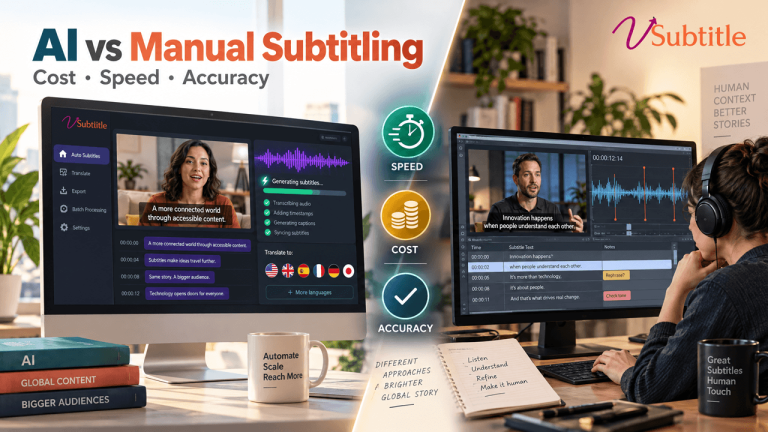
AI gives you a fast draft, and human review brings it up to standard. For high-stakes content, such as assessments or compliance modules, our comparison of AI vs human captioning can help you decide how much review you need. If your lessons include live classes or webinars, see how to add subtitles to Zoom and Teams recordings.
Ways to Subtitle an Online Course Compared
| Factor | vSubtitle (AI plus review) | Built-in auto captions | Manual typing or full outsourcing |
|---|---|---|---|
| Speed | Minutes for a draft | Automatic, but varies by platform | Hours to days per lesson |
| Terminology control | Editor plus shared glossary | Often limited editing options | High, but slow and costly |
| Languages | 100+ with translation | Depends on the platform | Depends on vendor or skills |
| Export and reuse | SRT, VTT, JSON, embedded | Often locked to one platform | Depends on process |
| Cost at scale | Output-minute billing | Often bundled, quality varies | Highest per minute |
| Best for | Course creators and teams with regular content | Quick baseline captions | Certified or high-stakes content |
Tools and platform features change, so verify details with each provider. For a closer look at how dedicated tools differ from built-in options, read AI subtitles vs YouTube auto captions, and for a head-to-head example, see vSubtitle vs VEED.
Who Benefits Most From a Course Subtitle Generator?
- Independent course creators: save hours per module and reach international learners without extra recording.
- Universities and educators: caption lecture libraries consistently and support accessibility goals.
- Corporate learning teams: make onboarding and compliance training accessible across regions. Explore subtitles for corporate training videos.
- Medical, legal and technical trainers: use AI as a draft and add expert review for terminology.
- Language teachers: subtitles in the target language, or both languages, support listening practice.
- YouTube educators: channels teaching tutorials and lessons benefit from captions and translations. See the best AI subtitle generator for YouTube creators.
Common Mistakes When Subtitling Online Courses
- Captioning before lessons are final, which means redoing the work after every edit.
- Skipping the glossary, so the same term is misspelled in dozens of lessons.
- Publishing raw AI output without checking terminology, formulas or names.
- Inconsistent file naming, which leads to the wrong subtitles on the wrong lesson.
- Ignoring updates. A re-recorded lesson with old subtitles is worse than none.
- Not testing on the learner’s device. Always check subtitles on the actual platform, including mobile.
Final Thoughts
The best subtitle generator for online video courses is the one that handles specialist content accurately, scales across a whole library, makes corrections quick and keeps subtitles easy to update. Subtitles are not an extra for your learners. They are part of how people understand, review and access your teaching.
vSubtitle combines high accuracy, fast cloud processing, 100+ languages, a flexible editor, collaboration tools and the exports course platforms need. The easiest way to judge it is on a real lesson. Create a free account, upload one of your most technical videos using the free minutes available to new users, and see how much time you save.
Frequently Asked Questions (FAQs)
What is the best subtitle generator for online video courses?
The best option offers high accuracy on specialist content, fast processing, a quick editor, multilingual support, SRT and VTT export, and predictable pricing. vSubtitle offers up to 97.8% accuracy, 100+ languages, collaboration tools and flexible exports, which suits course creators and teaching teams.
Do online courses need subtitles?
Subtitles help learners follow technical content, support non-native speakers and learners watching without sound, and make courses accessible to deaf and hard-of-hearing students. Many institutions and regions also expect accessible content, so check the requirements that apply to you.
How do I add subtitles to course videos?
Upload your finished lessons to a subtitle generator such as vSubtitle, generate and review the subtitles, export SRT or VTT files, then upload each file to your course platform or video host and attach it to the correct language.
Can AI subtitles handle technical terminology?
AI gives a strong draft, but specialist terms, names, formulas and acronyms are common error points. Build a glossary, review with a subject-matter eye, and correct terms in the editor before publishing.
Can I translate my course subtitles into other languages?
Yes. vSubtitle supports more than 100 languages, so you can subtitle in your teaching language and add translated versions for international learners. Have a native speaker review translations for important or assessed content.
Which subtitle file format do course platforms use?
SRT and VTT are the most commonly accepted formats, but platforms differ, so check your learning platform’s requirements. vSubtitle exports SRT, VTT and JSON, and can embed captions directly into video.
What happens to subtitles when I update a lesson?
If an update changes the timing, the subtitles need regenerating or editing to match. Finalize lessons before captioning, keep a change log, and update subtitles whenever a lesson is re-recorded or trimmed.
Relevant Articles
Keep exploring with these related guides from the vSubtitle blog:
- Closed Captions: A Legal Requirement for Online Courses – Why course accessibility matters.
- Medical Educators and AI Captions: Handling Complex Terminology – How AI captions handle specialist vocabulary.
- How to Batch-Process Subtitles for Multiple Videos – Caption a whole course library efficiently.
- How to Translate Video Subtitles Automatically – Reach international learners.
- The Ultimate Guide to Video Accessibility – Why accurate captions matter for every audience.
- How to Create Multilingual Subtitles for One Video – Publish many subtitle languages for one lesson.
- AI vs Human Captioning in 2026 – When to rely on AI and when to add human review.