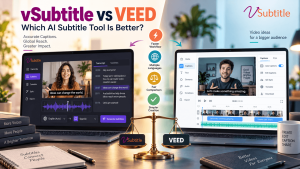
If you are choosing an AI subtitle tool, VEED is almost certain to appear on your shortlist. It is a popular online video editor with a well-known auto-subtitle feature. vSubtitle approaches the same problem from a different direction: it is an AI subtitling and captioning platform built around one job, getting accurate, editable, multilingual subtitles out of your videos quickly.
So which one is better? The honest answer is that it depends on what you need. In this comparison of vSubtitle vs VEED, we look at accuracy, languages, editing, exports, pricing models and workflow, explain where each tool is strongest, and show you how to test both on your own videos before you commit.
A quick note on fairness:
Information about VEED in this article comes from VEED’s public website at the time of writing. Features, limits and prices change often, so please confirm current details on VEED’s own pages before you decide.
Key Takeaways
- VEED is an all-in-one online video editor with auto-subtitles as one of its features. vSubtitle is a dedicated AI subtitling platform focused on generating, editing, translating and exporting subtitles.
- Accuracy claims are not directly comparable. VEED advertises up to 99.9% accuracy, while vSubtitle reports up to 97.8%. Marketing figures depend on audio and method, so test both tools with your own footage.
- Languages: VEED advertises 125+ languages; vSubtitle supports 100+. Both cover the major languages most creators need.
- Choose VEED if you want to edit video and add styled subtitles in the same browser tool. Choose vSubtitle if subtitles are your main task and you value a dedicated subtitle editor, collaborative review, output-minute billing and SRT, VTT and JSON exports.
- The best way to decide is a small test. Run the same three videos through both tools, count the corrections, time the workflow, and compare the results.
- vSubtitle offers the first 30 minutes free for new users at the time of writing, which makes a real-world test easy.
Quick Verdict: vSubtitle vs VEED at a Glance
| Question | VEED | vSubtitle |
|---|---|---|
| What is it? | A browser-based video editor with auto-subtitles and many other editing tools | An AI subtitling and captioning platform built for subtitle workflows |
| Best for | Creators who want to edit and caption in one place | Creators, teams and agencies who want a focused, repeatable subtitle workflow |
| Advertised accuracy | Up to 99.9% (VEED’s claim) | Up to 97.8% (vSubtitle’s claim) |
| Languages | 125+ advertised | 100+ |
| Subtitle exports | SRT, VTT, TXT, or video with burned-in subtitles | SRT, VTT, JSON, or captions embedded into video |
| Pricing model | Free tier with limits, then paid subscription plans | Output-minute billing, first 30 minutes free for new users |
| Standout strength | All-in-one editing, styled subtitles, wide AI toolset | Dedicated subtitle editor, collaborative review, simple minute-based costs |
What Is VEED?
VEED is an online video editing platform that runs in the browser. Alongside trimming, effects and other editing tools, it includes an auto-subtitle generator. According to its website, you upload a video, choose the language, and VEED transcribes and times the speech, then lets you edit the text and style the subtitles. VEED advertises accuracy of up to 99.9% and support for 125+ languages, flags low-confidence words to help you proofread, and lets you export either the video with subtitles burned in or a subtitle file in SRT, VTT or TXT format. It also lists a captions API for creating styled captions programmatically.
VEED’s strength is breadth. If you want to cut footage, adjust the look of your video and add captions without leaving one tool, that is attractive.
What Is vSubtitle?
vSubtitle is an AI subtitling and captioning platform designed around subtitle work. You upload a video, choose the spoken language and any target languages, and the platform generates time-coded subtitles that you review in a customizable editor. It reports up to 97.8% accuracy, supports 100+ languages, processes hours of footage in minutes, and exports SRT, VTT and JSON files or embeds captions into the video. It also supports review workflows and real-time collaborative editing for teams. Billing is based on output minutes, and new users can currently start with their first 30 minutes free.
vSubtitle is not trying to replace your video editor. It is designed to do the subtitle step well and then hand you files that work wherever you publish. You can see this approach in the auto subtitle generator and the auto caption generator.
Accuracy: Comparing the Claims Fairly
On paper, VEED’s advertised 99.9% looks higher than vSubtitle’s 97.8%. Before you let that decide the matter, consider how these figures are produced and used.
- Both numbers are vendor claims, usually measured on favourable audio, such as clear speech with one speaker and little background noise.
- Real accuracy depends on your content. Accents, overlapping voices, music, jargon and brand names affect every AI tool, whichever logo is on it.
- Editing time is the metric that matters. A tool that is 1% more accurate on paper but harder to correct may still cost you more time overall.
- Names and technical terms need human review in both tools. VEED itself recommends checking proper names and flags low-confidence words to help you do so.
The practical conclusion is simple: do not choose on the headline number. Run your own test using the method described later in this guide. For a wider view on where AI accuracy stands against human work, read our guide to AI vs human captioning.
Languages and Translation
VEED advertises transcription and translation across 125+ languages, and vSubtitle supports 100+ languages. For most creators, businesses and educators, both lists cover the major languages used by large audiences, so the difference only matters if you work with a particularly uncommon language. Check that your specific languages appear on each tool’s list, and test quality on your own recordings, because quality varies by language in every AI product.
In both tools, translation is a fast first draft rather than a final product, so it is wise to have a native speaker review brand-critical content. For a deeper look at the workflow, see our guides on how to translate video subtitles automatically and how to create multilingual subtitles for one video, and the AI video translator page.
Editing and Styling
This is where the two tools differ most in philosophy.
VEED puts subtitles inside a full video editor. That means you can trim clips, adjust visuals and style captions in one place, which suits short-form creators who like to finish a video start to finish in the browser.
vSubtitle puts the subtitles first. Its editor focuses on text, timing, styling and formatting for subtitles, with the video playing alongside, and it supports review workflows and real-time collaboration. If your video is already edited in another tool such as Premiere Pro, Final Cut or DaVinci Resolve, a dedicated subtitle editor avoids duplicating features you already have. Many agencies and editors prefer this approach. See our guide to the best AI subtitle generator for video agencies and freelancers.
Export Formats and Portability
Both tools let you download subtitle files and create videos with captions built in. VEED’s pages list SRT, VTT and TXT downloads or a video with burned-in subtitles. vSubtitle exports SRT, VTT and JSON, and can embed captions directly into the video.
The practical difference is in how you use the files. SRT and VTT cover nearly every video platform and player, so both tools handle the standard cases. JSON can be useful if you want structured, time-coded text for custom workflows such as transcripts or in-house tools. If you are unsure which format to pick, read our SRT vs VTT vs ASS format guide or our tutorial on how to create an SRT file automatically.
Speed and Workflow
Both tools process audio in the cloud and return subtitles in minutes for typical videos. vSubtitle reports processing hours of footage in minutes and about three times faster than traditional methods. VEED describes generating subtitles in one click.
Where workflow differs is what happens next. With VEED, the next step is often styling and exporting within the same editor. With vSubtitle, the next step is a focused review pass in the subtitle editor, then download and publish. If you handle many videos, a repeatable subtitle-only process pays off. Our guide on how to batch process subtitles for multiple videos shows how teams do it.
Pricing Models: Subscription vs Output Minutes
The two tools charge in different ways, which affects which is cheaper for you.
- VEED offers a free tier with limits and paid subscription plans that unlock more usage and features. Plan names, limits and prices change over time and differ between sources, so check VEED’s pricing page for current numbers.
- vSubtitle bills by output minutes. Once you generate and download a set of captions or translations, re-downloading that set does not use extra minutes. Monthly plans suit steady schedules, and annual plans let you use minutes flexibly across the year. New users can currently start with their first 30 minutes free.
A subscription that bundles an editor with other tools can be good value if you use all of it. Minute-based billing can be easier to budget if you mainly need subtitles, because cost tracks how much you actually caption and translate. Work out your typical monthly volume, then compare both on that basis.
Collaboration and Team Use
vSubtitle supports review workflows and real-time collaborative editing, so editors, producers and translators can work on the same subtitles without passing files around. If your team is larger than one person, check the current team features and plans for any tool you consider, including VEED’s, and confirm that the terms cover commercial and client work.
vSubtitle vs VEED: Detailed Comparison Table
| Factor | VEED | vSubtitle |
|---|---|---|
| Core focus | All-in-one online video editing with auto-subtitles | Dedicated AI subtitling and captioning |
| Accuracy (vendor claim) | Up to 99.9% | Up to 97.8% |
| Languages | 125+ advertised | 100+ |
| Subtitle editor | Within the video editor; flags low-confidence words | Dedicated editor for text, timing and styling |
| Export options | SRT, VTT, TXT, burned-in video | SRT, VTT, JSON, embedded captions |
| Video editing tools | Extensive | Not the focus; use your preferred editor |
| Collaboration | Check current plan features | Review workflows and real-time collaborative editing |
| Pricing approach | Free tier plus paid subscriptions | Output-minute billing; first 30 minutes free for new users |
| Ideal user | Solo creators editing and captioning in the browser | Creators, agencies and teams running a subtitle workflow |
Which Tool Should You Choose?
Choose VEED if…
- You want to edit your video and add subtitles in a single browser-based tool.
- You like building styled, animated captions as part of the creative process.
- You need other features from its wider AI toolset and will use them regularly.
Choose vSubtitle if…
- Subtitles and captions are your main task, and you already edit video in another tool.
- You want a dedicated subtitle editor and a review step for names, numbers and timing.
- You work with a team, agency or clients and need collaborative review.
- You publish in multiple languages and want a clean subtitle-to-translation workflow. See the best AI subtitle generator for YouTube creators.
- You prefer to budget by output minutes rather than a bundled subscription.
- You want JSON output as well as SRT and VTT.
It is also perfectly reasonable to use both: for example, editing in VEED and generating reviewed, multi-language subtitle files in vSubtitle, or the other way round. Many teams mix tools to suit each project.
How to Test vSubtitle and VEED on Your Own Videos
A short, structured test will tell you more than any comparison article, including this one. Here is a simple method.
- Pick three representative videos. Choose one with clean audio, one with an accent or a guest, and one with technical terms or brand names.
- Use the same files in both tools. Upload each video to vSubtitle and to VEED, using the free allowances available on each. New vSubtitle users can create a free account and use the first 30 minutes free.
- Count the corrections. For a two-minute section of each video, count how many words you needed to fix in each tool.
- Time the whole workflow. Measure the time from upload to a finished, correct subtitle file, including review and export.
- Test translation. Generate one translated language and ask a native speaker to rate it for naturalness.
- Check the outputs. Upload the exported subtitle files to your real platform, such as YouTube, and confirm they work and look right.
- Compare the cost. Estimate your monthly volume and calculate what each plan would cost you.
Score each tool from 1 to 5 on accuracy, editing speed, languages, export options and cost, and weight the scores by what matters most to you.
Looking at Other Options Too
VEED and vSubtitle are not the only choices. If you are building a wider shortlist, our Rev vs Otter vs vSubtitle comparison, our guide to CapCut alternatives for professional AI captions, and our roundups of the top 10 AI captioning tools and best AI subtitling software can help. If you are weighing free options, see the best free subtitle generator roundup, and for a look at how dedicated tools compare with the platform’s own captions, read AI subtitles vs YouTube auto captions.
Final Verdict
There is no universal winner in the vSubtitle vs VEED debate. VEED is a strong choice if you want one browser tool for editing and captioning. vSubtitle is a strong choice if you want a dedicated subtitling platform with an editor built for review, collaborative workflows, 100+ languages, flexible exports and straightforward output-minute billing.
The most reliable way to decide is to try both on your own content. Create a free vSubtitle account, use the free minutes available to new users on one of your real videos, and compare the result with any other tool on your shortlist. Your own footage is the only benchmark that counts.
Frequently Asked Questions (FAQs)
What is the difference between vSubtitle and VEED?
VEED is an online video editor that includes an auto-subtitle feature among many editing tools. vSubtitle is an AI subtitling and captioning platform focused on generating, editing, translating and exporting subtitles, with collaborative review and SRT, VTT and JSON exports.
Is vSubtitle a good VEED alternative?
It is a good alternative if subtitles are your main task and you already edit video elsewhere. It offers 100+ languages, a dedicated subtitle editor, collaborative review and output-minute billing. If you want an all-in-one video editor, VEED may suit you better.
Which is more accurate, vSubtitle or VEED?
VEED advertises up to 99.9% accuracy and vSubtitle reports up to 97.8%, but both are vendor claims measured under different conditions. Real accuracy depends on your audio, accents and vocabulary, so test both tools with your own videos.
Which tool supports more languages?
VEED advertises 125+ languages and vSubtitle supports 100+. Both cover the major languages, so check that the specific languages you need are supported and test quality on your own recordings.
How do the pricing models differ?
VEED offers a free tier with limits and paid subscription plans. vSubtitle bills by output minutes, and new users can currently start with their first 30 minutes free. Check each provider’s current pricing page, as plans change.
Can I use vSubtitle and VEED together?
Yes. Some creators edit and style videos in one tool and use a dedicated subtitle platform for reviewed, multi-language subtitle files. Export formats such as SRT and VTT make it easy to move subtitles between tools.
Can I try vSubtitle for free before choosing?
New users can currently start with their first 30 minutes free, enough to run a few real videos through the workflow. Offers can change, so check the registration page for the latest details.
Relevant Articles
Keep exploring with these related guides from the vSubtitle blog:
- Rev vs Otter vs vSubtitle: AI Captioning Comparison – Another side-by-side look at popular captioning tools.
- Best CapCut Alternatives for Professional AI Captions – Options for creators who want more control.
- Top 10 AI Captioning Tools Guide 2026 – A shortlist of tools worth comparing.
- Best AI Subtitling Software – What to look for in subtitling software.
- AI Subtitles vs YouTube Auto Captions – How dedicated tools compare with built-in captions.
- Best Free Subtitle Generator 2026 – Free options and what to expect from them.
- Best AI Subtitle Generator for Video Agencies and Freelancers – Subtitle workflows for client work.