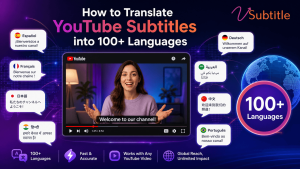
One upload, dozens of markets: the complete workflow for turning a single video into subtitles your global audience can actually read.
YouTube is watched in more than 100 countries and close to 80 languages, but most channels publish subtitles in exactly one — the language the video was recorded in. That gap is one of the simplest, highest-return opportunities left in video growth: a single upload can already unlock most of the world’s internet-connected audience the moment its subtitles exist in the languages that audience actually reads.
Getting there isn’t complicated, but doing it well takes more than clicking YouTube’s built-in auto-translate button. This guide walks through exactly how to translate YouTube subtitles into 100+ languages — what YouTube’s native tools can and can’t do, how AI-assisted translation with a tool like vSubtitle fits into the workflow, how to upload multilingual subtitle tracks properly, and how to keep translated captions accurate, readable, and on-brand rather than just technically present.
Why Multilingual Subtitles Are Worth the Effort
Captioned videos already earn more watch time than uncaptioned ones, since a large share of viewing happens with the sound off. Translated subtitles extend that same effect across language markets that would otherwise skip a video entirely, regardless of how strong the content is. Spanish and Portuguese alone open up Latin America, Spain, and Brazil; Hindi unlocks one of YouTube’s largest markets by daily active users. Creators who prioritize just three or four of the right languages for their audience commonly see their reachable audience multiply several times over — not from making new content, but from making existing content legible to people who were never excluded by interest, only by language.
This is also, increasingly, an SEO and AI-visibility play, not just a viewer-experience one. Translated subtitle tracks give YouTube’s own search system, Google, and AI answer engines like ChatGPT and Perplexity a version of your content’s text in the exact language a viewer is searching in — something a single-language transcript can never do, no matter how well-optimized it is.
Method 1: YouTube’s Built-In Auto-Translate (Viewer Side)
YouTube offers a native auto-translate feature that any viewer can turn on: click the CC icon, open Settings, choose Subtitles, select Auto-translate, and pick a language. It works on any video that already has captions — auto-generated or manual — and covers over 100 languages.
It’s the fastest option, but it comes with real limits worth knowing before relying on it:
- It only works while a viewer is actively watching — there’s no way to download or publish the auto-translated result as a real subtitle file.
- Accuracy typically runs 70–90%, and drops further on technical language, slang, idioms, and heavy accents in the source captions.
- It only appears as an option if the creator has enabled captions at all — auto-translate can’t be triggered on a video with no captions in the first place.
- Nothing here is under the creator’s control. The channel doesn’t choose the wording, doesn’t get to fix errors, and can’t guarantee brand-consistent terminology.
Auto-translate is genuinely useful for a casual viewer who just wants the gist. It’s not a substitute for creator-published translated subtitles, which is the option that actually improves discoverability, accessibility compliance, and the experience for a returning audience in a specific language.
Method 2: Manually Uploading Translated Subtitle Files
Creators can add their own translated subtitle tracks directly in YouTube Studio: open Subtitles, select the video, click Add Language, and upload a translated .srt or .vtt file for that language, or type translations manually. Each language becomes its own selectable track in the CC menu, downloadable and fully controlled by the creator — this is what actually shows up as a permanent, publishable option rather than a one-time viewer setting.
The bottleneck is producing those files. Hand-translating a caption track means working sentence by sentence while keeping every timecode intact, and doing that across dozens of languages — each with its own line-length norms, character sets, and reading-speed limits — is not a task most channels can realistically do by hand at scale.
Method 3: AI-Assisted Translation With vSubtitle (Recommended)
This is where AI subtitle tools close the gap between YouTube’s quick-but-limited auto-translate and slow, fully manual translation. vSubtitle is built specifically for this workflow: it takes an existing subtitle file or a video’s audio, generates or imports the source-language captions, and translates them into 100+ languages while preserving the original timecodes — so every translated line still lands exactly where the matching dialogue occurs, without the manual re-syncing that hand-translation requires.
Because the output is a standard, editable caption file rather than a live, in-player-only translation, it solves the core limitation of YouTube’s native auto-translate: the translated subtitles can be reviewed, corrected, and then uploaded directly to YouTube Studio as a permanent, creator-owned language track — searchable, downloadable, and consistent for every viewer in that language, not just the one currently watching.
Step-by-Step: Translating and Publishing Multilingual YouTube Subtitles
- Start with a clean source transcript. If the video doesn’t already have accurate captions, generate them first — vSubtitle transcribes the video’s audio into an accurate, editable caption track, which becomes the source text every translation is built from. Review and correct this file before translating; any error here carries into every language downstream.
- Choose your target languages deliberately, rather than translating into everything available at once. See the language-prioritization section below for how to shortlist based on your actual audience.
- Run the translation in vSubtitle. Upload the reviewed source caption file (or the original video) and select your target languages — vSubtitle translates the full set while keeping each cue’s timing intact, so line breaks stay synced to the spoken audio in every language.
- Spot-check each translated track, especially for languages with different sentence structure, honorifics, or right-to-left text (Arabic, Persian, Hebrew, Urdu). Machine translation handles most everyday phrasing well but can miss idioms, brand terms, and context-dependent politeness levels — a quick native-speaker review, even a partial one, catches the errors most likely to embarrass a channel.
- Export each language as its own SRT or VTT file from vSubtitle.
- Upload each file in YouTube Studio: go to Subtitles, select the video, click Add Language, choose the language, and upload the corresponding file. Repeat for each translated track.
- Translate the title and description for each language too. YouTube Studio lets you add localized metadata alongside each caption track — this is what actually shows a translated title to a viewer browsing in that language, since caption tracks alone don’t change what appears in search or suggested results.
- Publish, then periodically check view data by language (available in YouTube Analytics) to see which translated tracks are actually being watched, and prioritize future translations accordingly.
Which Languages Should You Translate First?
Translating into all 100+ supported languages at once is rarely the right first move. A shortlist based on audience size, content type, and existing traffic gets far more return per translation than blanket coverage:
| Language | Why It’s Often a High-Priority Pick |
|---|---|
| Spanish | Opens Latin America and Spain simultaneously — one of the largest combined YouTube audiences outside English |
| Portuguese | Brazil alone represents one of YouTube’s largest single-country audiences |
| Hindi | One of YouTube’s largest markets by daily active users |
| Arabic | Right-to-left; strong demand for educational, news, and entertainment content across a wide region |
| Persian | High demand for educational and entertainment content; also right-to-left |
| Japanese / Korean | Large, high-engagement audiences, but heavily context- and politeness-dependent — budget extra time for review |
| Chinese | Very large potential audience; requires a choice between Simplified and Traditional characters depending on target region |
| Indonesian / Vietnamese / Thai | Fast-growing Southeast Asian audiences with comparatively less translated content competing for attention |
A practical starting shortlist for most channels: 3–5 languages that match either an existing pocket of non-native viewers already showing up in analytics, or a market your content topic naturally travels well in (tutorials and how-to content, for example, tend to translate especially well). Expand from there once you can see which languages are actually converting into watch time.
Keeping Translated Captions Accurate and Readable
- Preserve timing, not just wording. A good translation workflow keeps every cue’s start and end time locked to the original audio — vSubtitle handles this automatically, which is one of the most error-prone steps to do by hand.
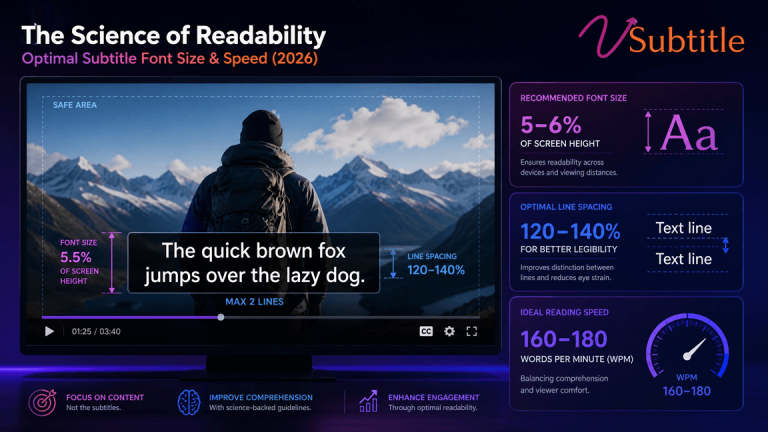
- Respect each language’s own reading-speed and line-length norms. Some languages run longer than English for the same meaning (German, for instance); others, like Chinese, convey more per character. A one-size-fits-all character limit across every language will make some translations feel rushed and others oddly slow.
- Handle right-to-left languages properly. Arabic, Persian, Hebrew, and Urdu need correct text direction and punctuation handling — a plain word-for-word conversion without RTL support often renders unreadable.
- Keep brand and product names consistent. Decide up front whether names like your product or channel stay in the original language or get transliterated, and apply that choice consistently across every translated track.
- Review machine translation for idioms and tone. Automated translation has gotten very strong at literal accuracy but can still flatten humor, sarcasm, or culturally specific references — a quick pass catches the lines likely to land wrong.
Subtitle File Formats YouTube Accepts
Whichever translation method you use, the output needs to land in a format YouTube Studio will actually accept. The most common and reliable choices:
| Format | Best For |
|---|---|
| .srt (SubRip) | The most universally supported format; a safe default for most uploads |
| .vtt (WebVTT) | Similar to SRT with added styling support; widely used for web-embedded video as well as YouTube |
| .sbv | YouTube’s own legacy format; still accepted but less commonly used than SRT/VTT today |
| .ttml / .dfxp | Used in broadcast and enterprise workflows requiring more precise styling and positioning control |
vSubtitle exports translated tracks in SRT, VTT, TXT, and DFXP, covering both the quick YouTube upload workflow and more demanding broadcast or enterprise delivery requirements — so the same translation pass can serve a YouTube channel and a company’s other distribution channels without redoing the work in a different tool.
Common Mistakes to Avoid
- Relying solely on YouTube’s auto-translate and assuming it’s equivalent to publishing real translated subtitle tracks — it isn’t discoverable, downloadable, or editable.
- Translating from a source caption file that was never proofread, so every language inherits the same transcription errors.
- Uploading translated captions but leaving the title and description in the original language only, which limits how the video surfaces in that language’s search results.
- Treating every language identically instead of budgeting extra review time for languages with different sentence structure, script direction, or cultural context.
- Translating into a long list of languages with no view data behind the choice, rather than starting with a focused shortlist and expanding based on what actually gets watched.
Key Takeaways
- YouTube’s built-in auto-translate is fast but temporary — it only works live for a viewer and can’t be published as a real, discoverable subtitle track.
- Creator-uploaded translated subtitle files, added through YouTube Studio’s Subtitles tab, are what actually improve accessibility, search visibility, and repeat viewership in a given language.
- vSubtitle bridges the gap: it generates or imports a clean source transcript and translates it into 100+ languages while preserving timecodes, turning a task that’s normally slow and manual into a workflow that scales.
- Prioritize languages based on your actual audience and content type rather than translating into everything at once — a focused shortlist of 3–5 languages typically delivers the strongest early return.
- Always review machine-translated captions, especially for right-to-left languages and content with idioms, humor, or brand-specific terminology.
A video doesn’t need to be re-recorded, re-edited, or re-shot to reach a new audience — it just needs subtitles that the audience can actually read. With the right workflow, one upload really can become a hundred-plus versions of itself, each one legible to a viewer who would otherwise have scrolled past.
Frequently Asked Questions (FAQs)
Can I translate YouTube subtitles into 100+ languages for free?
Viewers can use YouTube’s built-in auto-translate for free, which covers 100+ languages, but it only works live in the player and can’t be downloaded or published by a creator. Publishing real, creator-controlled translated subtitle tracks requires either manual translation or an AI tool like vSubtitle to generate accurate files at scale.
What’s the difference between YouTube auto-translate and uploading translated subtitle files?
Auto-translate is a temporary, viewer-side setting that generates a translation only while someone is actively watching — it isn’t searchable, downloadable, or editable. Uploaded translated subtitle files become a permanent language track on the video, fully controlled by the creator, discoverable in search, and consistent for every viewer who selects that language.
How accurate is AI subtitle translation?
Modern AI translation handles straightforward, literal meaning well across most language pairs, but can still miss idioms, humor, and culturally specific references. A quick review pass — even a partial one focused on key terms and tone — meaningfully improves quality before publishing, especially for languages with very different sentence structure from the source.
Do translated subtitles keep the same timing as the original?
They should. A proper translation workflow, like the one vSubtitle uses, keeps each cue’s start and end time locked to the original audio, so translated text still appears in sync with the spoken dialogue regardless of how much longer or shorter the translated phrasing runs.
Which languages should I translate my YouTube subtitles into first?
Start with languages that match your existing audience data or markets your content naturally travels well in. Spanish, Portuguese, and Hindi are common high-return starting points due to audience size, with Arabic and Persian strong choices for educational and entertainment content reaching right-to-left-language markets.
Do I need to translate the video title and description too, or just the subtitles?
Both, ideally. Translated subtitles improve accessibility and watch experience, but localized titles and descriptions — added per language in YouTube Studio — are what actually help the video surface in that language’s search results and suggested videos.
Can I upload multiple subtitle languages to a single YouTube video?
Yes. YouTube Studio’s Subtitles tab lets you add a separate track for each language under Add Language, and viewers can choose any available language from the CC menu. There’s no practical limit that would stop most channels from covering dozens of languages on one video.
How does vSubtitle handle right-to-left languages like Arabic or Persian?
vSubtitle translates into right-to-left languages with correct text direction and export formatting, producing standard SRT/VTT files ready for upload. As with any language, a native-speaker review before publishing is still recommended to catch context-dependent phrasing machine translation can miss.