Every traditional rule for subtitling assumes a flat, fixed screen. The caption sits at the bottom third. The viewer looks forward. The text is always visible.
VR and AR break every one of these assumptions. In a 360-degree immersive environment, there is no ‘bottom third’. The viewer can look in any direction — up, down, behind them. The speaker might be to the left while the viewer is looking right. A caption anchored to one position in the virtual world could be completely invisible if the viewer isn’t looking that way. And if captions follow the viewer’s gaze too aggressively, they become nauseating.
Subtitling for immersive media is one of the most technically and creatively challenging problems in accessible content production — and in 2026, it’s no longer a niche concern. VR training programmes, AR surgical overlays, immersive journalism, 360-degree tourism content, virtual classrooms, and XR gaming are all producing video content that needs to be accessible to deaf and hard-of-hearing audiences.
This guide explains the unique challenges of captioning in 360-degree space, the main techniques being used, the tools available, and a practical workflow for any creator working with immersive content — including how vSubtitle fits into the pipeline.
| 🥽 This is a forward-looking guide for an emerging field. Best practices are still evolving — but the core accessibility principles remain constant. The goal is always the same: ensure every viewer can fully access the content, regardless of how they experience it. |
1. Why Standard Subtitling Approaches Fail in VR and AR
Before exploring solutions, it’s worth understanding exactly why traditional captioning approaches break down in immersive environments. The challenges are distinct from anything flat-screen video creators encounter.
The Viewport Problem
In standard video, the viewport is fixed — the viewer always sees the same rectangular frame. A caption placed at the bottom centre is always in the viewer’s field of view. In VR, the viewer’s field of view is a small window into a full 360-degree sphere. A caption rendered at a fixed position in the 3D world might be directly behind the viewer — completely invisible — while dialogue is playing.
The Speaker Location Problem
In flat video, the speaker is almost always on screen when they’re speaking. In 360-degree video or VR, a speaker may be positioned anywhere in the environment — to the left, behind the viewer, above them. If the viewer is looking in a different direction, they miss both the speaker’s visual presence and any caption positioned near the speaker.
The Motion Sickness Problem
Captions that are ‘head-locked’ — fixed to the viewer’s field of view and moving with every head rotation — create a disturbing visual effect similar to text on a windshield. They feel unnatural, reduce immersion, and for many users cause disorientation or nausea, particularly in fully enclosed VR headsets. The solution is not simple: captions need to be accessible without being rigidly attached to the viewer’s gaze.
The Depth and Scale Problem
In a 3D immersive environment, captions rendered at the wrong depth or scale can appear to float uncomfortably close to the viewer’s face, or so far away that they’re illegible. Text that looks perfect at 2 metres in a virtual environment may be unreadable at 10 metres, or uncomfortably large at 0.5 metres. Finding the right rendering depth for readable, comfortable captions requires testing across headset types.
The Immersion Disruption Problem
VR and AR are defined by presence — the feeling of actually being in the environment. Heavy or intrusive captioning can break this presence, reminding viewers that they’re watching content rather than experiencing it. The challenge is making captions accessible without making them a distraction from the immersive experience itself.
| 🔬 These challenges don’t mean 360-degree content can’t be subtitled — they mean it requires different approaches than flat-screen content. Researchers, broadcasters, and immersive content studios have developed several working solutions, each with specific tradeoffs. |
2. The 4 Main Captioning Approaches for 360-Degree and VR Content
| Technique 1: World-Anchored (Diegetic) CaptionsCaptions are placed at a fixed position in the 3D world — attached to the environment rather than the viewer. Like a sign floating in the virtual space, they stay in one place while the viewer moves. Often positioned in the viewer’s natural line of sight or near where the speaker is located in the scene.✅ Best for: Narrative VR experiences, 360-degree documentaries, and content where the director controls the viewer’s attention. Creates the most natural, immersive feel when executed well.⚠️ Watch out: Captions can become invisible if the viewer looks away. Requires careful scene design to ensure captions are positioned where the viewer naturally looks. Not suitable for action-heavy content where the viewer may be looking in any direction. |
| Technique 2: Head-Locked with Soft Follow (Semi-Fixed)Captions follow the viewer’s gaze but with a slight lag — positioned slightly below the centre of the viewer’s field of view and ‘floating’ into position smoothly rather than snapping to the viewer’s exact orientation. This creates a more comfortable experience than rigid head-locking while ensuring captions are always visible.✅ Best for: Interactive VR experiences, VR training, and content where the viewer has significant freedom of movement. Balances accessibility and comfort better than fully head-locked captions.⚠️ Watch out: Must be implemented with carefully tuned lag parameters to avoid the ‘swimming’ sensation. Pure head-locking without lag is discouraged. Positioning requires testing across headset types. |
| Technique 3: Speaker-Anchored (Proximity-Based) CaptionsCaptions are attached to or positioned near the speaker in the virtual environment, following the speaker if they move. An audio-direction indicator (arrow or glow effect) optionally guides the viewer toward the active speaker when they’re not looking in that direction.✅ Best for: Multi-speaker VR dialogues, 360-degree interview formats, theatrical VR, and content where identifying who is speaking is critical to the narrative.⚠️ Watch out: Requires spatial audio integration and often speaker tracking in the content. Complex to implement for pre-recorded 360-degree video without real-time rendering. Audio-direction indicators must not disrupt immersion. |
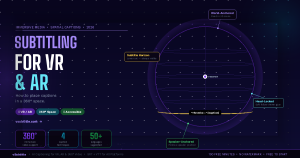
| Technique 4: Subtitle Horizon (Persistent Lower Arc)Captions are rendered in a fixed arc at the bottom of the viewer’s 360-degree field of view — like a permanent subtitle band that spans the full horizontal horizon at a fixed vertical position. No matter which direction the viewer faces horizontally, there are captions at the bottom of their view. The caption content changes based on the active dialogue.✅ Best for: 360-degree video content (non-interactive), sports broadcasts, events, and content where the viewer may look in many horizontal directions. Widely used by major broadcasters (BBC, NHK) for 360-degree journalism.⚠️ Watch out: The subtitle horizon is always at the very bottom of the viewer’s field of view — some viewers find it intrusive. Does not address vertical movement (viewers looking up or down). Best suited for horizontal 360-degree content. |
| Approach | Best Content Type |
| World-Anchored Captions | Narrative VR, guided experiences, controlled attention |
| Head-Locked Soft Follow | Interactive VR, training simulations, free-roam content |
| Speaker-Anchored Captions | Multi-person dialogue, VR theatre, interview 360-video |
| Subtitle Horizon (Lower Arc) | 360-degree video, broadcasts, journalism, sports events |
3. Caption Design Principles for Immersive Environments
Beyond placement strategy, the visual design of captions in VR and AR requires rethinking every standard assumption about text appearance in video.
Font Size and Legibility at Depth
Text that is readable on a flat screen at standard sizes is not necessarily readable when rendered in 3D space. In VR, caption text should be significantly larger than flat-screen equivalents — with a minimum angular size of approximately 1.5 degrees of visual arc. In practice, this means caption text rendered at a typical reading distance of 2 metres should be roughly 80–120pt equivalent in the virtual environment.
| 🥽 Testing tip: Always validate caption legibility in the actual headset environment — simulator previews on a flat screen do not accurately represent how text appears at scale and depth in an HMD (Head-Mounted Display). |
Background Contrast in 3D Environments
Unlike flat-screen video where captions sit over a relatively predictable range of backgrounds, VR and AR captions can appear against any part of a 360-degree environment — a bright sky, a dark forest, a neon-lit interior. A caption that is readable against one background may be completely invisible against another.
Solutions used in immersive captioning:
- Semi-transparent background panel: A dark, rounded rectangle behind the caption text ensures legibility regardless of the environment behind it. The most reliable approach.
- Stroke / outline: A thick dark outline around white text (or white outline around dark text) provides contrast across varied backgrounds without a full opaque panel.
- Luminance-adaptive text: More complex to implement, but some VR systems can analyse the local luminance of the environment and automatically adjust caption text colour accordingly.
Caption Duration and Timing
In VR, viewers may be in the middle of rotating their head or exploring the environment when a caption appears. Standard minimum display times (1.5 seconds for flat video) should be extended to at least 2.5–3 seconds in VR to account for the time it takes for the viewer to notice a new caption, orient toward it (if world-anchored), and read it.
Line Length and Reading Speed
In immersive environments, reading long caption lines requires significant eye movement — which can break the sense of presence and cause disorientation. Caption lines in VR and AR should be kept to a maximum of 32–36 characters (shorter than the flat-screen 42-character limit), and reading speed should be limited to approximately 14 characters per second.
Colour and Accessibility in XR
Standard accessibility guidance on caption colour — white or yellow text with high contrast backgrounds — applies equally in immersive environments. The 4.5:1 minimum contrast ratio from WCAG 2.1 AA remains the target. Additionally, in VR environments where colour saturation and rendering can vary by headset, test caption colours across different devices.
Speaker Identification in 3D Dialogue
In multi-speaker VR experiences — a virtual roundtable, an immersive interview, a VR theatre production — identifying which speaker each caption belongs to is more important and more complex than in flat video. Best practices include:
- Colour-coding caption panels by speaker (consistent across the experience)
- Including speaker name labels above each caption block
- Positioning captions near each speaker’s location in the scene when spatial context allows
4. AR-Specific Captioning Considerations
Augmented Reality presents a different set of captioning challenges from VR. In AR, captions overlay the real world — which introduces constraints that don’t exist in fully virtual environments.
Real-World Background Variability
In AR, the background behind captions is the real world — which is completely unpredictable. A caption designed for indoor use may be unreadable outdoors in bright sunlight. This makes background panels and high-contrast outlines even more important in AR than in VR, where the environment is controlled.
Spatial Anchoring to Real Objects
One of AR’s most powerful captioning features is the ability to anchor captions to real-world objects or people — using computer vision to track a person’s face and display their speech as a caption that ‘follows’ them in the real-world view. This technique, used in products like Google’s Live Caption in Android and Apple’s Live Captions, is increasingly available in AR glasses platforms.
Screen Real Estate in Mixed Reality
In passthrough AR (like Meta Quest 3’s mixed reality mode), screen real estate is effectively unlimited — captions can be placed anywhere in the user’s field of view without obscuring important content. In optical AR (like Microsoft HoloLens), the display area is limited to the device’s field of view — typically narrower than human visual range — making placement more constrained.
Latency Requirements for Live AR Captions
For live AR captioning — such as real-time speech-to-text overlays for in-person conversations — latency is critical. Caption delay of more than 2–3 seconds in a live conversation is disorienting and practically unusable. Live AR captioning requires dedicated real-time ASR (Automatic Speech Recognition) systems, not post-production subtitle tools.
| 📌 vSubtitle is designed for post-production captioning of pre-recorded content — the foundation for VR video, 360-degree films, and recorded XR experiences. For live AR speech-to-text overlays, real-time ASR tools are the appropriate solution. |
5. Tools, Formats, and Technical Implementation
Implementing captions in VR and AR requires understanding both the tools available for generating accurate subtitle text and the technical formats and engines used to render that text in 3D environments.
Step 1: Generate Your Captions with vSubtitle
The first step in any VR or AR captioning pipeline is generating accurate, timestamped subtitle text. This is where vSubtitle provides the most direct value. Regardless of how you ultimately render captions in your immersive environment, the starting point is a high-quality SRT or VTT file.
vSubtitle’s workflow for VR/AR content:
- Export a flat MP4 version of your 360-degree video or record a clean audio track from your VR production
- Upload to vsubtitle.com and generate AI captions at 95%+ accuracy
- Review captions — paying attention to speaker labels, sound descriptions, and technical terms relevant to your content
- Export as SRT or VTT — the universal starting point for any downstream VR rendering pipeline
| ⚙️ Even if your final delivery is a fully interactive VR experience, the caption text and timestamps from vSubtitle’s SRT export are the raw material that every VR rendering engine consumes. Generate them accurately once, then adapt them to your immersive platform. |
Step 2: Choose Your Rendering Approach by Platform
| Platform / Engine | Recommended Captioning Implementation |
| Unity (VR/AR) | Use Unity UI TextMeshPro with custom SRT parser. Position caption canvas in world space or as soft-follow overlay. WebVR/WebXR projects can use A-Frame with custom caption component. |
| Unreal Engine | UMG (Unreal Motion Graphics) for caption UI. Parse SRT files via Blueprint or C++. Position in world space using Widget Component attached to scene objects. |
| YouTube 360 Video | Upload SRT/VTT file via YouTube Studio as standard caption track. YouTube renders captions at the bottom of the equirectangular frame — visible as a subtitle horizon in VR playback. |
| Meta Quest (native apps) | Use Oculus SDK with UI panels in world space. OVR Accessibility API supports caption positioning preferences. Follow Meta’s Immersive Accessibility guidelines. |
| Apple Vision Pro | SwiftUI with RealityKit. Caption text can be anchored in world space or as a persistent overlay. Follow Apple Human Interface Guidelines for spatial computing. |
| WebXR (browser-based) | A-Frame or Babylon.js with custom SRT loader. Position text entity in world space. A-Frame community captions component available on npm. |
| 360-degree Video (flat) | Burn captions into the equirectangular video frame at the lower arc, or deliver via standard SRT/VTT alongside the video file for platform rendering. |
Caption File Formats for Immersive Media
The SRT and VTT formats used for flat video are the starting point for immersive captioning as well. However, extended formats have been developed for 360-degree and spatial media:
- TTML (Timed Text Markup Language): Supports positional attributes — captions can be positioned at specific X/Y coordinates in a 360-degree frame using region elements. Used by BBC and EBU for broadcast immersive content.
- EBU-TT-D: The European Broadcasting Union’s distribution format for timed text. Supports spatial positioning in 360-degree video. Increasingly the standard for professional broadcast immersive captioning in Europe.
- IMSC1 (Internet Media Subtitles and Captions): W3C standard for distributing timed text on the web, including spatial positioning. Compatible with WebXR players.
- WebVTT with region markup: VTT supports region definitions that can be used to position captions at different locations in a 360-degree frame, though implementation varies by player.
For most creators working outside broadcast production, the practical workflow is: generate high-quality SRT/VTT from vSubtitle, then import into the appropriate game engine or XR platform for spatial positioning.
6. How Real Productions Are Captioning Immersive Content
The field of immersive captioning is young but growing rapidly. Here’s how different sectors are solving the problem in practice:
Broadcasting: BBC and the Subtitle Horizon Standard
The BBC has been at the forefront of accessible 360-degree content, developing the ‘subtitle horizon’ approach for their immersive journalism and documentary productions. Their research established that positioning captions as a persistent arc at the viewer’s natural horizon — approximately 15 degrees below the centre of their visual field — provides the best balance of accessibility and immersion for 360-degree video content.
Their workflow: captions are generated using speech recognition tools (corrected to broadcast accuracy standards), then positioned in the equirectangular video frame at the horizon line. The resulting video includes burned-in subtitles that appear as a natural arc at the bottom of the viewer’s field regardless of horizontal head rotation.
VR Training: Corporate and Military Applications
Corporate and military VR training programmes — where learners navigate 3D environments while receiving verbal instructions — have adopted the soft-follow head-locked approach with increasing sophistication. The key insight from production teams in this space: captions should sit comfortably below the centre of the viewer’s gaze, roughly where subtitles appear on a conventional cinema screen relative to the viewer’s natural resting eye position.
Production workflow: audio scripts and narration are captioned using standard AI tools (vSubtitle or similar), then imported into Unity or Unreal as SRT files, where a custom caption manager renders them as world-space or soft-follow UI panels.
Immersive Journalism: NYT, Guardian, and Vice
Major news organisations producing 360-degree documentary and journalism content have largely settled on burning captions into the equirectangular video frame — the same approach as the BBC’s subtitle horizon. The practical reason: 360-degree video is often distributed via YouTube 360 or embedded players that don’t support custom caption positioning, so burning captions into the video frame guarantees they appear correctly on every platform.
VR Theatre and Narrative Experiences
VR theatre productions — immersive narrative experiences designed for headset audiences — have developed the most sophisticated spatial captioning approaches, including speaker-anchored captions that follow characters through the virtual space, colour-coded caption panels for rapid speaker identification in multi-character dialogue, and directional caption indicators that signal to the viewer which direction a speaker is located when they’re off-screen.
7. Practical Workflow: Captioning a 360-Degree Video with vSubtitle
Here’s a complete, implementable workflow for a creator producing 360-degree video content who needs to add accessible captions:
| 🚀 360-Degree Video Captioning Workflow |
Step 1: Extract or Export a Flat Audio/Video File
Most 360-degree video editing tools (Adobe Premiere, DaVinci Resolve, Final Cut Pro) can export a flat equirectangular MP4. Export your 360-degree project as a standard MP4 — the equirectangular format is fine. vSubtitle’s AI works on the audio track, so the visual distortion of the equirectangular format doesn’t affect captioning accuracy.
Step 2: Upload to vSubtitle and Generate Captions
Create your free account at vsubtitle.com, upload the MP4, select your language (50+ supported), and generate AI captions at 95%+ accuracy. For a 10-minute 360-degree video, processing takes 3–5 minutes.
Step 3: Review and Enhance Captions
Open the project in vSubtitle’s timeline editor and:
- Correct any errors — especially speaker names, location names, and technical terms
- Add speaker labels for all multi-speaker sections
- Add sound effect descriptions: [ Ambient crowd noise ], [ Wind ], [ Distant thunder ]
- Shorten caption lines to 32–36 characters maximum for immersive environments
- Ensure minimum 2.5-second display time for all captions
Step 4: Export SRT File
Download the corrected SRT file. This is your master caption file — the source of truth for all downstream implementations.
Step 5a: For Platform Distribution (YouTube 360, Vimeo 360)
Upload the SRT file directly to YouTube Studio or Vimeo as a standard caption track. Both platforms render captions as a subtitle horizon in VR headset playback. This is the fastest route to accessible 360-degree video on mainstream platforms.
Step 5b: For Game Engine Rendering (Unity / Unreal)
Import the SRT file into your Unity or Unreal project. Use a caption manager script (available on GitHub for both engines) to parse the timestamps and render captions as world-space or soft-follow UI panels. Test placement and sizing in your target headset.
Step 5c: For Burned-In 360-Degree Video
Use a 360-degree video editor or Python script (ffmpeg with subtitle filter) to burn captions into the equirectangular frame at the lower arc position. Export the captioned 360-degree video for distribution on platforms that don’t support external caption files.
| 💡 For most 360-degree video creators distributing via YouTube 360 or Vimeo, Step 5a is all you need — upload your SRT file to the platform and it handles the rest. The full game engine workflow (Step 5b) is for creators building custom VR applications. |
8. Accessibility Standards for Immersive Media in 2026
Accessibility standards for VR and AR are less mature than those for traditional web content, but the landscape is developing rapidly.
W3C Immersive Web Accessibility Task Force
The W3C’s Immersive Web Working Group has published guidance on XR accessibility, including recommendations for captions in spatial environments. Key principles: captions should always be available, always legible, and never cause motion sickness. Specific positioning recommendations align broadly with the soft-follow approach for interactive content and the subtitle horizon for passive 360-degree video.
XR Association Guidelines
The XR Association — whose members include Meta, Microsoft, Sony, and Valve — has published accessibility guidelines for immersive experiences. These include requirements for caption availability, user control over caption positioning and size, and support for assistive technologies. Platforms targeting XRA compliance should implement user-adjustable caption settings.
WCAG 3.0 and Immersive Media
The forthcoming WCAG 3.0 (in development at time of writing) includes guidance on immersive content accessibility for the first time. The draft guidance extends the captioning requirements of WCAG 2.1 to 360-degree and spatial content, while acknowledging the placement challenges specific to immersive environments and allowing greater flexibility in implementation approach.
Platform-Specific Accessibility Requirements
| Platform | Accessibility Requirement for Captions |
| Meta Quest Store | Apps must support accessibility APIs. Caption support required for content with dialogue. Meta Accessibility API supports caption customisation. |
| Apple Vision Pro | Apps must follow Apple Human Interface Guidelines for spatial computing, including support for system-level caption settings. |
| Steam VR | No mandatory caption requirement, but Steamworks accessibility features recommended. Caption support listed as a quality signal in Steam’s discoverability tools. |
| PlayStation VR2 | Sony’s accessibility guidelines recommend captions for all VR content with dialogue. Required for accessibility certification. |
| WebXR (browsers) | WCAG 2.1 AA applies to web-based XR content. Captions required for all audio content in synchronised media. |
9. Frequently Asked Questions
Can I use standard SRT files for VR captioning?
Yes — SRT is the universal starting format for VR captioning. It’s what you generate with vSubtitle and what you import into Unity, Unreal, or other VR platforms. The VR engine or platform then handles the spatial rendering and positioning of the caption text. SRT gives you the text content and timestamps; the platform gives you the spatial placement.
Do burned-in captions work for 360-degree video?
Yes, and it’s one of the most common approaches for 360-degree video distribution. Captions are burned into the equirectangular video frame at the lower arc position — approximately 15 degrees below the horizontal centre. When the video is played in a VR headset, these captions appear as a subtitle arc at the bottom of the viewer’s field. YouTube 360 and most VR video players render them correctly. The limitation: the captions are always visible and can’t be toggled off.
Does vSubtitle support 360-degree video files directly?
vSubtitle processes the audio track of any video file, so equirectangular MP4 files (the standard format for 360-degree video) are fully supported for caption generation. The AI transcribes the audio and generates a timestamped SRT/VTT file. The 360-degree visual format doesn’t affect captioning accuracy. For the spatial rendering of captions in VR environments, you then import the SRT file into your VR platform or game engine.
What’s the best caption position in a VR headset?
Research from BBC R&D and other immersive media labs consistently points to the lower arc — approximately 10–15 degrees below the viewer’s natural resting eye position — as the optimal position for VR captions. This mirrors where subtitles appear on a cinema screen relative to the viewer’s natural gaze. For interactive VR with free head movement, a soft-follow approach (captions that drift toward the lower portion of the viewer’s field of view with a gentle lag) outperforms both rigid head-locking and fully world-anchored captions in user comfort tests.
How do you handle captions when the speaker is behind the viewer?
There are two main approaches: (1) Use a directional indicator — a visual cue (arrow, glow, or highlight) that signals to the viewer which direction the speaker is located, alongside a caption that appears in the viewer’s current field of view. (2) Use the soft-follow method where captions always appear in the viewer’s field regardless of where the speaker is, with a speaker label identifying who is talking. The BBC’s subtitle horizon approach handles this implicitly — captions appear at the bottom of the viewer’s field regardless of where the speaker is in the 360-degree scene.
Are there accessibility laws that specifically cover VR content?
As of 2026, most accessibility laws (ADA, EAA, AODA, Equality Act) apply to digital content broadly — and legal interpretation is increasingly extending these to immersive content. The ADA’s application to virtual environments has been tested in US courts in cases involving virtual venues and events. The safest legal position for any commercial VR content with dialogue is to provide accessible captions — the specific method is not yet mandated by law, but the obligation to make content accessible is.
The Future of Immersive Captioning — And How to Prepare
Subtitling for VR and AR is a field in active development. The technical solutions are maturing, the standards are forming, and the audience for immersive content is growing rapidly. Creators and studios who establish accessible captioning workflows now will be ahead of the curve as the space matures and compliance requirements solidify.
The practical starting point is always the same: generate accurate, timestamped captions from your audio. vSubtitle handles that step — producing the SRT and VTT files that every downstream VR and AR platform consumes. Everything else in the immersive captioning pipeline builds on that foundation.
Whether you’re producing 360-degree journalism, VR training programmes, immersive theatre, or AR-enhanced educational content — the workflow begins with getting the caption text right. Start there.
| 🥽 Caption Your Immersive Content — Start FreeGenerate accurate SRT/VTT files for any VR or AR pipeline. 100 free minutes. No watermark.Create your free account at vsubtitle.com |