

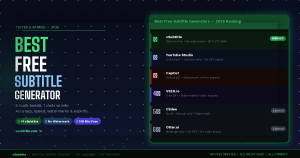
There are dozens of subtitle generators available in 2026 — and most of them have a catch. A watermark. A tiny free limit. An export paywalled behind a subscription. Or auto-generated captions that are riddled with errors.
We tested the most popular free subtitle tools so you don’t have to — evaluating each one on accuracy, speed, free plan generosity, export formats, watermarks, and ease of use. Whether you’re a YouTube creator, a freelancer captioning client videos, or just someone who needs to subtitle a single video, this guide gives you a straight answer.
| 🏆 Bottom line up front: vSubtitle is the best free subtitle generator in 2026 for most users — 100 free minutes, no watermark, no credit card, 50+ languages, and a full editing suite. We’ll show you exactly how it compares to the alternatives. |
1. What to Look for in a Free Subtitle Generator
Not all free plans are created equal. Before we get into the rankings, here are the criteria that actually matter:
| Criteria | Why It Matters |
| Free minute limit | How much content can you caption before hitting a paywall? 100 minutes is very different from a 5-minute trial. |
| Watermark policy | Many free tools stamp a visible watermark on exported videos — unusable for professional or client work. |
| Accuracy | AI captioning accuracy ranges from 70% to 95%+. Low accuracy means hours of manual correction. |
| Export formats | Can you export SRT, VTT, and burned-in video? Or only one format behind a paywall? |
| Languages | Does it support your video’s language? English-only tools are useless for multilingual content. |
| Editing interface | Can you correct errors, adjust timing, and split lines in-browser? Or do you need a separate tool? |
| No credit card | Does the free plan require a card to start? Many creators don’t want to enter payment details upfront. |
2. The Best Free Subtitle Generators in 2026 — Ranked
| 🥇 #1 vSubtitle — Best Overall Free Subtitle Generator🆓 Free plan: 100 minutes — no watermark, no credit card, full exports included👤 Best for: YouTube creators, freelancers, course creators, social media — anyone who needs fast, accurate, professional results🎯 Accuracy: 95%+ on clear audio. Full timeline editor to correct errors. Best-in-class for multilingual content.📁 Exports: SRT, VTT, burned-in MP4 — all available on the free planVerdict: vSubtitle is the only tool that gives you a genuinely usable free plan: 100 minutes, zero watermark, all export formats unlocked. For most creators and freelancers, this is enough to subtitle dozens of videos before needing to pay anything. |
Here’s what makes vSubtitle stand apart from every other free option on this list:
- No watermark — ever. Even on the free plan, your exported videos are completely clean. This is rare. Most free tools stamp their branding on every export.
- Full export flexibility. SRT files for YouTube and LinkedIn. VTT for web embeds. Burned-in MP4 for Instagram and TikTok. All free.
- 50+ languages. The best multilingual support of any free tool — critical for non-English content creators.
- Built-in timeline editor. Review, correct, split lines, and adjust timing all in the browser — no separate software needed.
- Translation included. Generate subtitles in your video’s language and translate them into additional languages in the same workflow.
| 🥈 #2 YouTube Studio Auto-Captions — Best Free Option for YouTube-Only Creators🆓 Free plan: Unlimited — free for all YouTube videos, no account cap👤 Best for: Creators who publish exclusively on YouTube and don’t need to export caption files🎯 Accuracy: 70–85% for clear English. Lower for accents, fast speech, or non-English. Must be manually edited for accuracy.📁 Exports: Edit within YouTube Studio only. No SRT download on free — captions stay inside YouTube.Verdict: YouTube’s auto-captions are the default go-to — but they’re a starting point, not a finished product. The accuracy is inconsistent, the editor is basic, and you can’t take the captions anywhere else without paying for a third-party tool. Good if you never leave YouTube. |
| 🥉 #3 CapCut — Best Free Tool for Short-Form Social Video🆓 Free plan: Free auto-captions for short clips — watermark on exports in free tier👤 Best for: TikTok and Instagram Reels creators making short-form content under 10 minutes🎯 Accuracy: 80–88% for clear speech. Good for conversational content; struggles with technical terms.📁 Exports: Burned-in video export (watermarked on free). No SRT export on free plan.Verdict: CapCut is excellent for what it’s designed for — short social media clips. The auto-caption feature is genuinely fast and the styling options are great for Reels. But the watermark on free exports is a dealbreaker for professional use, and there’s no SRT export without upgrading. |
| 4️⃣ #4 VEED.io — Polished Browser Tool — Limited Free Plan🆓 Free plan: Free tier available but adds VEED watermark to all video exports👤 Best for: Casual users testing subtitle features; not suitable for professional or client work on free plan🎯 Accuracy: 88–92% for clear English audio. Good editor interface.📁 Exports: SRT download available on free. Video export with watermark on free. VTT behind paywall.Verdict: VEED has one of the best-designed editing interfaces in the space — clean, intuitive, and well-built. But the watermark on free video exports makes it impractical for any serious use. If you only need an SRT file (not a burned-in video), VEED’s free tier works. Otherwise, you’ll hit the paywall quickly. |
| 5️⃣ #5 Clideo — Simple Tool for Manual Subtitle Entry🆓 Free plan: Free tier with watermark. No auto-generation — manual text entry only.👤 Best for: One-off personal use where you already have the subtitle text and just need to embed it🎯 Accuracy: N/A — no AI auto-generation. You type every line yourself.📁 Exports: Burned-in video export (watermarked on free). No SRT export.Verdict: Clideo is a basic video tool, not a proper AI subtitle generator. There’s no speech-to-text — you type every subtitle manually and position it on screen. Fine for a 30-second clip with one line of text. Completely impractical for anything longer. |
| 6️⃣ #6 Otter.ai — Meeting Transcription Tool — Not Built for Video🆓 Free plan: 600 min/month free — but designed for meetings, not video subtitle export👤 Best for: Meeting transcription and note-taking. Not recommended for video captioning workflows.🎯 Accuracy: 85–90% in meeting environments. Drops on video content with variable audio.📁 Exports: Text transcript only on free. No SRT export, no burned-in video, no timeline editor.Verdict: Otter’s free plan is generous in minutes, but it’s the wrong tool for video subtitling. There’s no SRT export, no timeline editor, and no burned-in video output. Getting a usable subtitle file out of Otter for a YouTube video is a multi-step workaround. Use it for meetings — not for video captions. |
3. Side-by-Side Comparison Table
| Feature | vSubtitle | YouTube | CapCut | VEED.io | Clideo | Otter.ai |
| Free Minutes | 100 min | Unlimited* | Unlimited* | Limited | Limited | 600 min/mo |
| Watermark-Free | ✅ Yes | ✅ Yes | ❌ No | ❌ No | ❌ No | ✅ Yes |
| No Card Required | ✅ Yes | ✅ Yes | ✅ Yes | ✅ Yes | ✅ Yes | ✅ Yes |
| AI Auto-Generation | ✅ 95%+ | ✅ 70–85% | ✅ 80–88% | ✅ 88–92% | ❌ Manual only | ✅ 85–90% |
| SRT Export Free | ✅ Yes | ❌ No | ❌ No | ✅ Yes | ❌ No | ❌ No |
| VTT Export Free | ✅ Yes | ❌ No | ❌ No | ❌ Paid | ❌ No | ❌ No |
| Burned-in Video Free | ✅ Yes | N/A | ⚠️ Watermark | ⚠️ Watermark | ⚠️ Watermark | ❌ No |
| Languages | 50+ | ~10 | ~30 | ~25 | Limited | ~10 |
| Built-in Editor | ✅ Full timeline | ✅ Basic | ✅ Good | ✅ Good | ❌ Basic | ❌ No |
| Translation | ✅ Yes | ❌ No | ❌ No | ⚠️ Paid | ❌ No | ❌ No |
| Best For | Everything | YouTube only | Short-form social | SRT files only | Manual only | Meetings only |
* YouTube and CapCut are ‘unlimited’ but only within their own platforms — you cannot export a standalone SRT file on the free tier.
| 📊 vSubtitle is the only free tool that gives you SRT, VTT, and watermark-free burned-in video — all on the free plan. Every other tool restricts at least one of these critical features behind a paid tier. |
4. Which Free Subtitle Generator Should You Use? (By Use Case)
| Your Situation | Best Free Tool |
| YouTube creator — need SRT for upload | vSubtitle — only free tool with clean SRT export and no watermark |
| Instagram Reels / TikTok creator | vSubtitle (burned-in MP4, no watermark) or CapCut (watermark on free) |
| Freelancer delivering to clients | vSubtitle — watermark-free exports are non-negotiable for client work |
| Online course creator | vSubtitle — SRT/VTT for LMS platforms, no watermark, compliance-ready |
| One-off personal video | YouTube Studio (if on YouTube) or CapCut (if short-form social) |
| Meeting transcription | Otter.ai — the right tool for its designed purpose |
| Non-English video content | vSubtitle — 50+ languages including Hindi, Arabic, Portuguese and more |
| Need to translate captions | vSubtitle — only free tool with built-in translation on the free plan |
| Testing before committing | vSubtitle — 100 free minutes, no card, see the full workflow before paying |
5. How to Use vSubtitle’s Free Plan — Step-by-Step
Getting started takes under 2 minutes. Here’s the complete workflow:
| 🚀 Add Free AI Subtitles in 5 Steps |
Step 1: Create Your Free Account
Go to vsubtitle.com and click ‘Start for Free’. Enter your email and set a password — that’s it. No credit card. No phone number. You’ll land in your dashboard with 100 free minutes ready to use.
Step 2: Upload Your Video or Paste a YouTube URL
Click ‘New Project’. Upload your video file (MP4, MOV, AVI, MKV all supported) or paste a YouTube URL to pull the video directly from your channel. No need to download and re-upload if it’s already on YouTube.
Step 3: Select Your Language and Generate
Choose the language spoken in your video from 50+ options. Click ‘Generate Captions’. vSubtitle processes at 2–3x real time — a 10-minute video is ready in 3–5 minutes.
Step 4: Review in the Built-in Editor
Your captions open automatically in the timeline editor. Scan through and fix any errors — proper nouns and technical terms are the most common places where corrections are needed. For a 10-minute video with clean audio, this takes about 5 minutes.
Step 5: Export in Your Chosen Format
- SRT — for YouTube, LinkedIn, Vimeo, and course platforms
- VTT — for web video players and some LMS platforms
- Burned-in MP4 — subtitles permanently embedded, ready for Instagram, TikTok, and Facebook
| ✅ All three export formats are included on the free plan. No paywall. No watermark. Your exported file is completely professional and ready to publish or deliver to a client. |
6. Frequently Asked Questions
Is vSubtitle completely free to start?
Yes. vSubtitle gives you 100 minutes of AI captioning at no cost — no credit card required, no time limit on when you use them. You can sign up today and use your 100 free minutes across as many videos as you like. When you run out, you can top up on a transparent pay-as-you-go basis.
What’s the catch with other ‘free’ subtitle generators?
Most free subtitle tools have one or more of the following limitations: (1) a watermark on exported videos, (2) a very short free limit (5–10 minutes), (3) no SRT export on the free plan, (4) only one export format available, (5) credit card required to access the free plan. vSubtitle is unusual in that none of these apply — the 100-minute free plan is genuinely usable without any of these restrictions.
Can I use a free subtitle generator for professional or client work?
Only if the tool produces watermark-free exports. Most free tools are not suitable for client deliverables because of watermarks. vSubtitle is the exception — its free plan exports have no watermark, making it completely suitable for professional and freelance use from day one.
How accurate are free AI subtitle generators?
Accuracy varies significantly. YouTube auto-captions: 70–85%. CapCut: 80–88%. VEED: 88–92%. vSubtitle: 95%+. Higher accuracy means less time spent on corrections — which is especially important if you’re processing multiple videos. The difference between 80% and 95% accuracy is the difference between 20 minutes and 5 minutes of editing for a 10-minute video.
Which free subtitle tool works best for non-English videos?
vSubtitle — by a clear margin. With 50+ languages supported at high accuracy, including Hindi, Tamil, Arabic, Portuguese, Spanish, French, Indonesian, and many more, vSubtitle handles non-English content far better than YouTube Studio (~10 languages), CapCut (~30), or VEED (~25). If your video is in any language other than English, vSubtitle is the recommended tool.
Can I add subtitles to a video without downloading any software?
Yes. vSubtitle, VEED, CapCut (desktop version), and YouTube Studio are all entirely browser-based. You upload your video, generate captions, edit in the browser, and download your export — no software installation required. vSubtitle works on any modern browser on Windows, Mac, or any device.
The Verdict: Best Free Subtitle Generator in 2026
After testing every major option, the answer is clear:
- Best overall: vSubtitle — 100 free minutes, no watermark, SRT + VTT + burned-in MP4, 50+ languages, built-in editor, translation included
- Best for YouTube-only creators: YouTube Studio — unlimited but limited to in-platform editing, no SRT export
- Best for short-form social: CapCut — fast and stylish but watermarked on free exports
- Best for SRT-only needs: VEED.io — good editor, free SRT download, but watermarked video exports
- Best for meetings (not video): Otter.ai — generous free plan but wrong tool for video subtitling
If you only need to subtitle videos once in a while for personal use, any of these tools will do. But if you’re creating content regularly, delivering to clients, or need professional-quality exports — vSubtitle’s free plan is the only option that doesn’t compromise on what matters.
| 🎬 Try vSubtitle Free — The Best Free Subtitle Generator in 2026100 free minutes. No watermark. No credit card. SRT, VTT, and burned-in MP4 — all free.Start subtitling for free at vsubtitle.com |